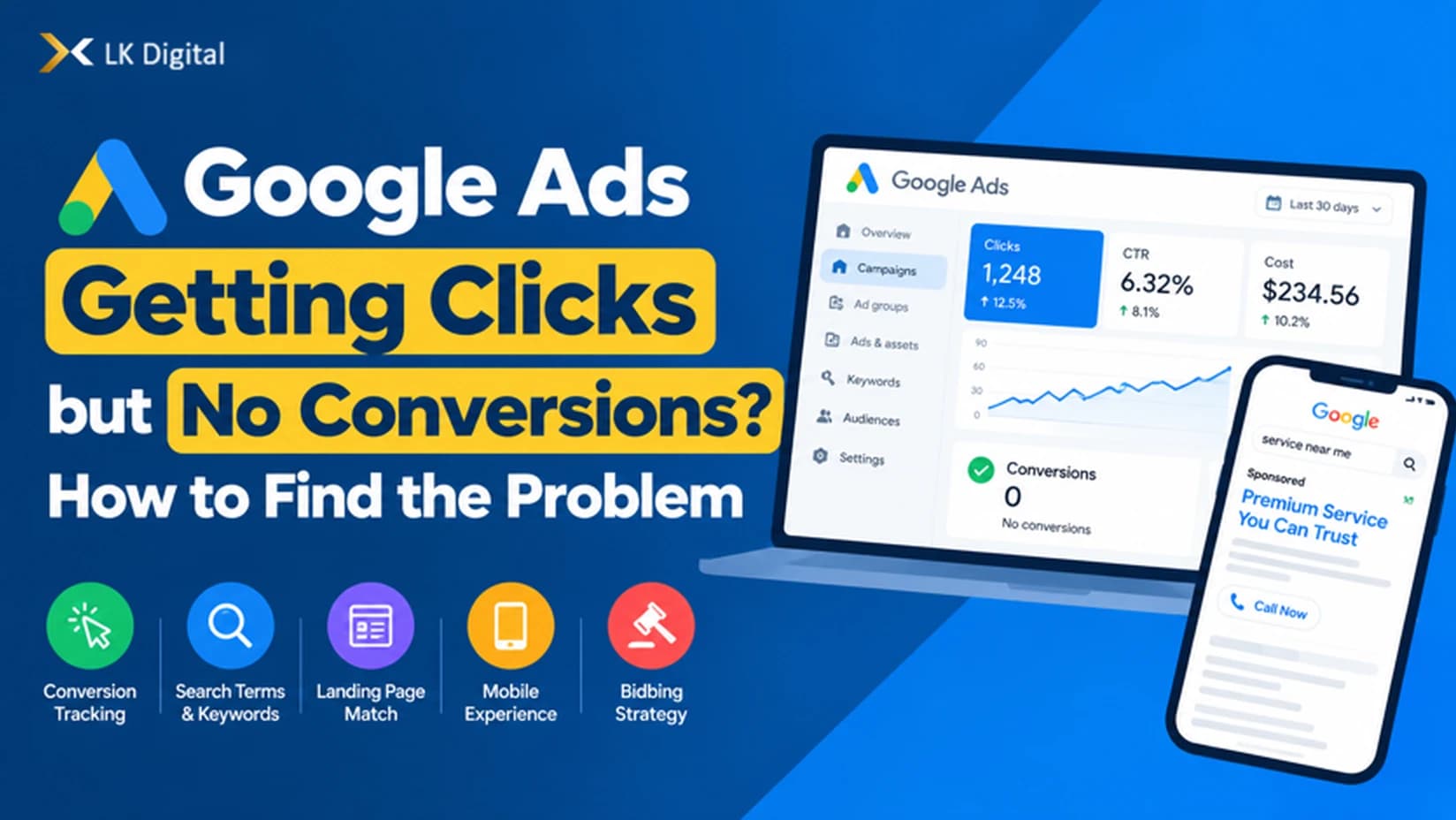
You log into Google Ads and see strong numbers: healthy traffic, high click-through rates, and your budget spending consistently every single day. But when you inspect your CRM, phone records, or checkout system, there are 0 inquiries, 0 sales, and 0 customer calls.
Driving clicks and securing conversions are two fundamentally different challenges. An enticing headline can bring people to your website, but the conversion path falls apart after the click if conversion tracking is unverified, broad keywords bring search junk, or your landing page fails to deliver on the ad's promise.
If you are paying high Cost-Per-Click (CPC) fees while automated bidding optimizes on bad signals, you are burning capital on low-intent clicks. Here is the sequential 5-step diagnostic framework to find where visitors drop off and get your campaign generating tracked leads.
“Driving clicks and securing conversions are two fundamentally different challenges. When broad match keywords waste budget on research queries and your landing page lacks scent-match, Google's Smart Bidding optimizes toward whoever clicks the cheapest, driving traffic quality further down.”
Clear the Basics: Diagnostic Checklist
Before altering any tags, rule out account-level and environment roadblocks. Use this fast reference table to pinpoint where the bottleneck lives:
| Level | Failure Point | What to Look For | Immediate Action |
|---|---|---|---|
| Conversion Tag | Tag Inactive or Unverified | Status reads 'No recent conversions' or 'Unverified' in Goals > Conversions > Summary | Test trigger via Google Tag Assistant (tagassistant.google.com) and verify event on thank-you page |
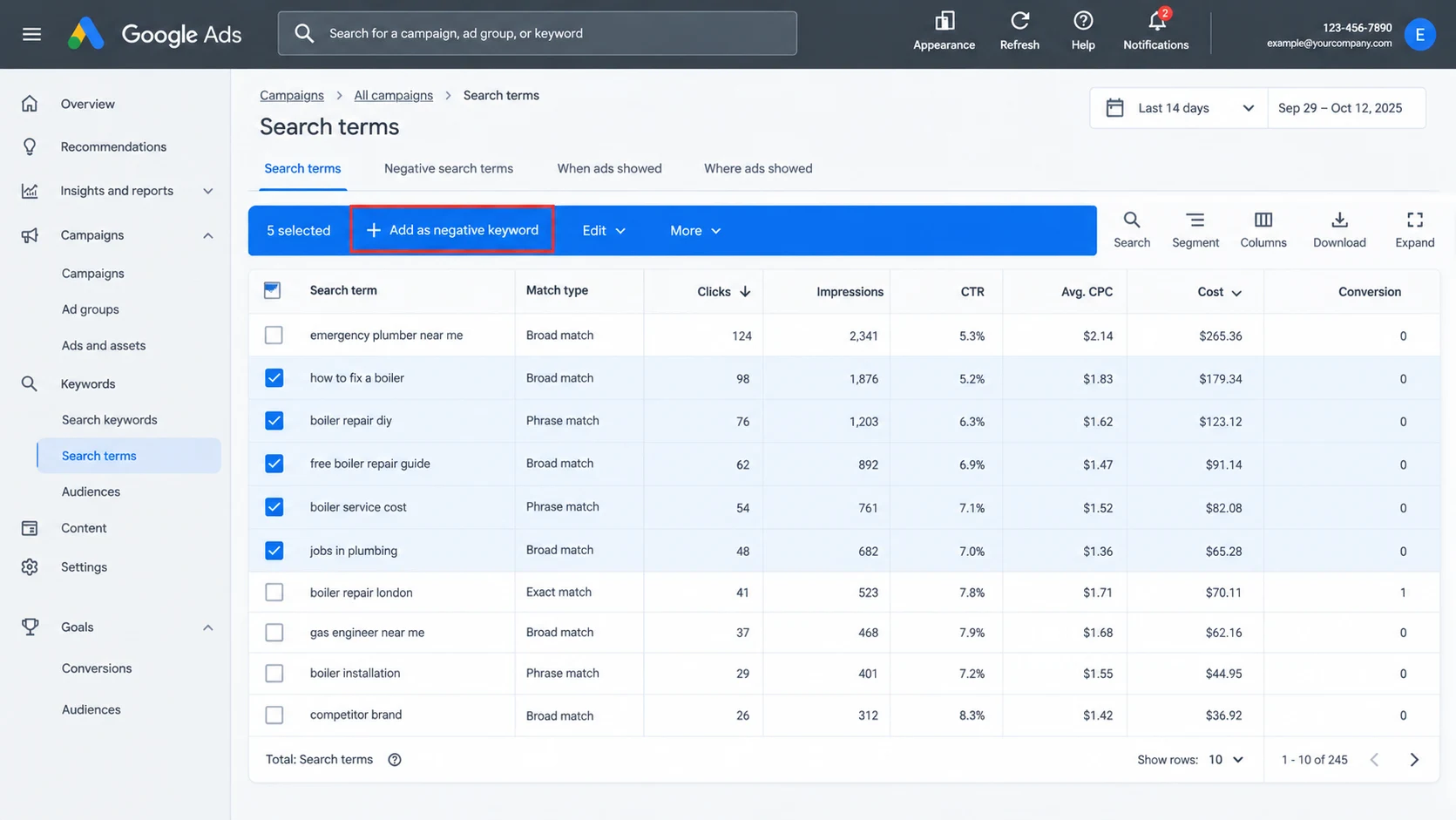
| Search Terms | Search Query Junk | Budget spent on queries containing 'free', 'DIY', 'salary', 'template', or 'jobs' | Select wasteful queries and add them as Negative Keywords at Ad group or Campaign level |
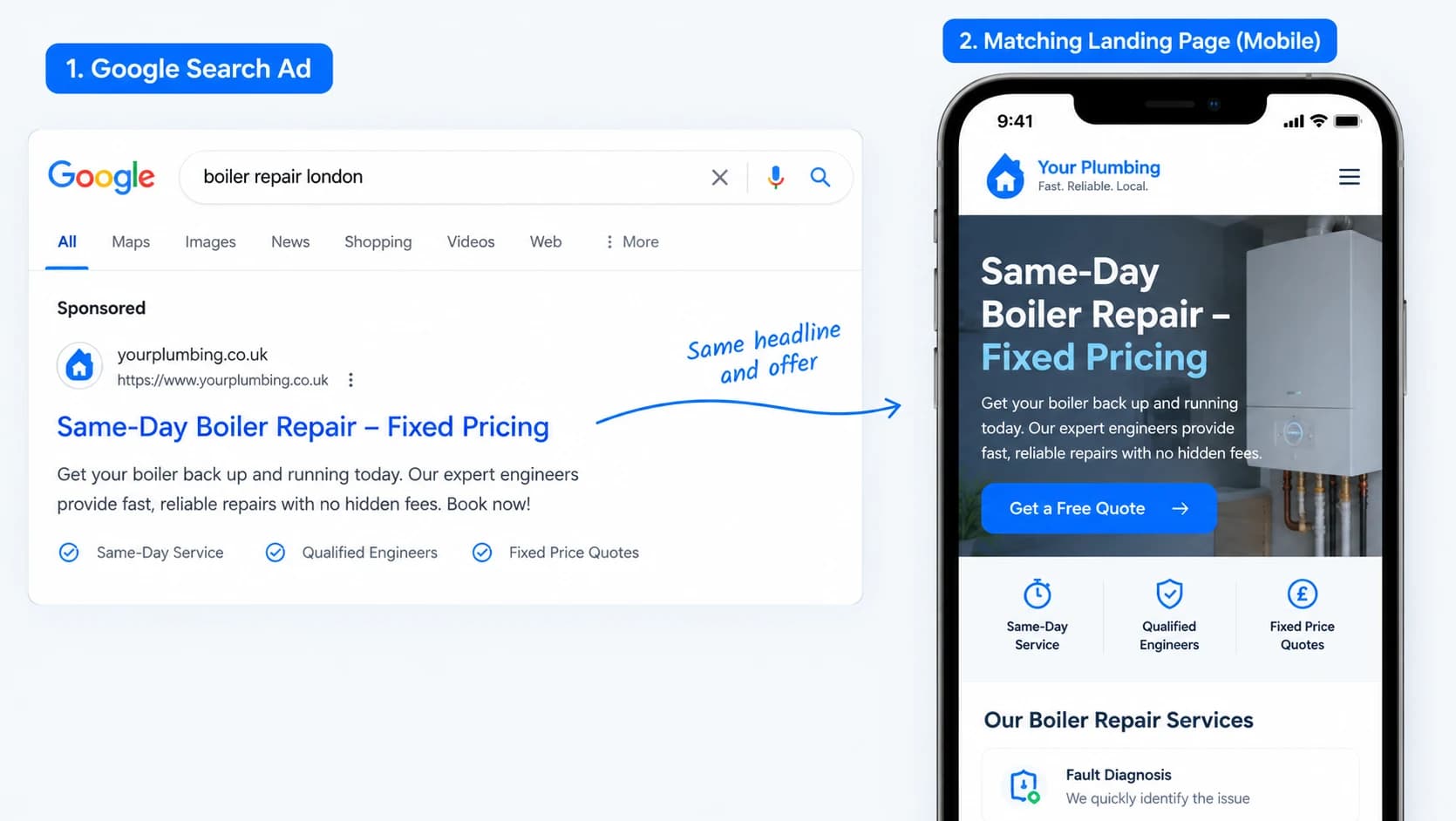
| Landing Page | Scent Mismatch | Ad promises specific offer, but sends users to a generic homepage or unrelated service | Direct ad traffic to a dedicated landing page mirroring the ad headline word-for-word |
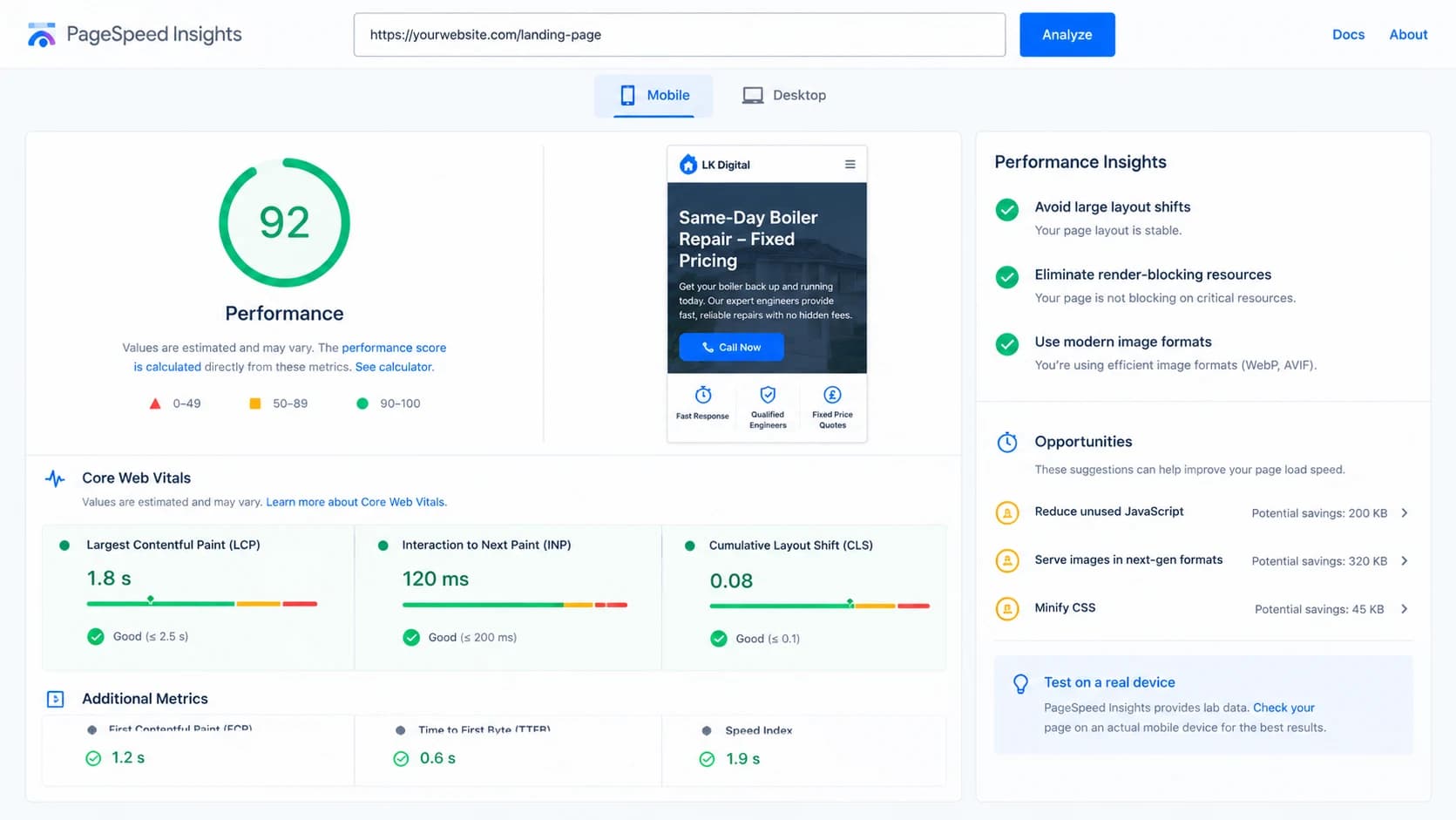
| Mobile UX | High Mobile Bounce Rate | Page load exceeds 3 seconds (LCP > 2.5s) or form is unwieldy and hard to fill on a phone | Compress images to .webp, purge unnecessary scripts, and trim form fields to essentials |
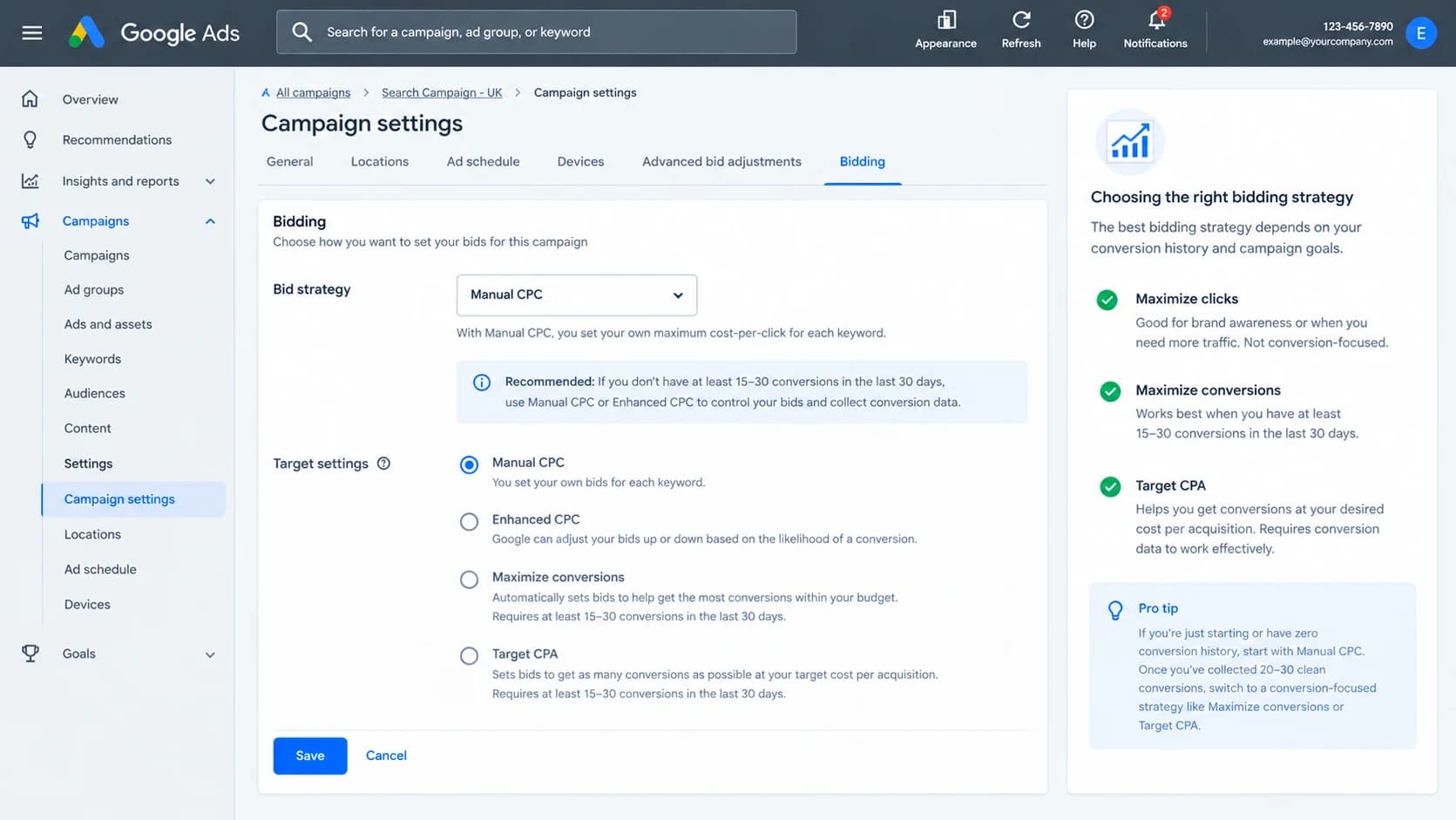
| Bidding | Premature Smart Bidding | Campaign set to Maximize Clicks or Max Conversions with under 15 conversions in last 30 days | Switch to Manual CPC until you collect 20–30 clean conversions, then enable Smart Bidding |
2. Step-by-Step Fixes
Follow these sequential troubleshooting steps to identify the technical break and restore accurate tracking data.
Verify That Conversion Tracking Is Active and Recording
Before changing any ad copy or keywords, verify that Google can physically record a completed action. An inactive or unverified conversion tag means actual sales and leads occur in the real world while Google Ads records zero conversions.
Action Checklist:
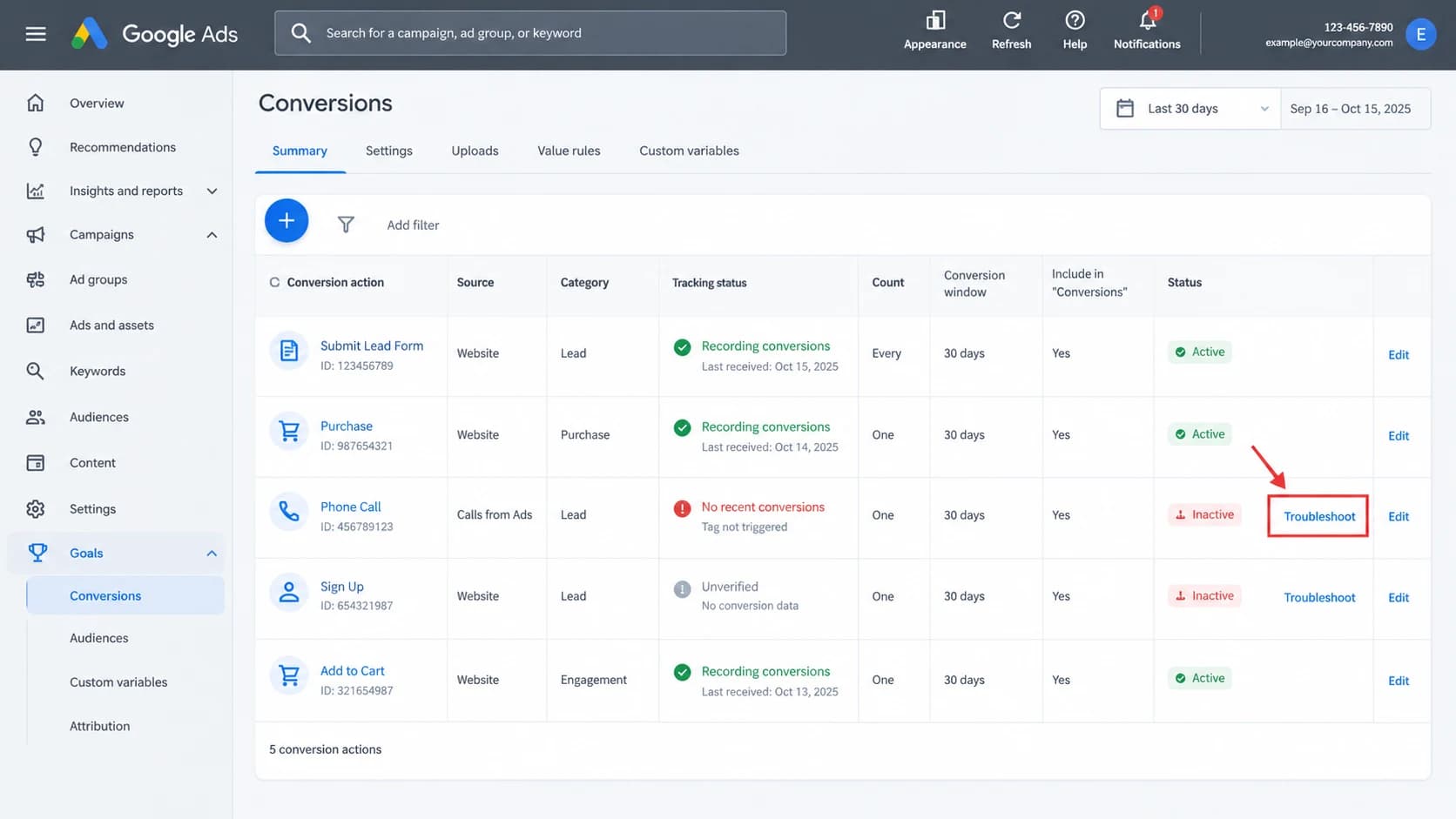
- 1In your Google Ads dashboard, navigate to Goals > Conversions > Summary.
- 2Locate your primary conversion action (e.g., Submit Lead Form, Purchase, or Phone Call).
- 3Review the Status column: If it reads 'No recent conversions' or 'Tag inactive', Google has not observed a triggered tag recently. If it reads 'Unverified', the tag has never fired.
- 4The Fix: Click Troubleshoot next to the action or use Google Tag Assistant (tagassistant.google.com). Complete a live test submission on your site. Confirm that your Google tag fires and records the event on your order confirmation or thank-you page.
- 5Verification: Refresh the Conversions Summary tab after testing; the tag status should update to 'Recording conversions' or display a recent test timestamp.
LK Digital Pro Tip: Always set your primary lead submission event to 'Primary action' used for bidding optimization, and set secondary engagements (like newsletter signups or page views) to 'Secondary action' (observation only). This prevents Smart Bidding from chasing low-value page views instead of real buyers.
Audit Your Search Terms Report for Irrelevant Queries
Even with tightly written ads, broad match or loose phrase match keywords can trigger impressions for search queries that waste budget. Paying for users looking for free advice, job openings, or DIY tutorials drains your budget before real buyers ever see your ad.
Action Checklist:
- 1In the left navigation sidebar, click Campaigns > Insights and reports > Search terms.
- 2Set your date range to the last 14 to 30 days and sort the table by Cost descending.
- 3Review the exact phrases users typed before clicking your ad. Watch for search terms containing words like: 'free', 'DIY', 'how to', 'template', 'salary', 'jobs', 'login', or unrelated competitor brands.
- 4The Fix: Select the checkbox next to any irrelevant search query and click 'Add as negative keyword' at the top of the table. Choose whether to apply it at the Ad group level or Campaign level.
- 5Verification: Review the search terms report 48 hours later to ensure those flagged terms and patterns no longer generate paid clicks.
LK Digital Pro Tip: Build a centralized Account-Level Negative Keyword List containing universal negative qualifiers (e.g., 'free', 'pdf', 'cheap', 'torrent', 'salary', 'definition', 'jobs', 'careers'). Apply this shared list across all active Search campaigns to block budget leaks before they start.
Eliminate 'Scent Mismatch' Between Ad and Landing Page
When an ad promises one specific thing and the landing page fails to display that promise in the first three seconds, users bounce immediately. A strong scent match guarantees cognitive continuity: the visitor immediately feels they landed in the right place.
Action Checklist:
- 1Open your ad copy in Ads Manager and write down the core offer, pricing, and headline (e.g., 'Same-Day Boiler Repair – Fixed Pricing').
- 2Click your ad's final URL on a mobile device and look at the above-the-fold hero section (the screen area visible before scrolling).
- 3The Fix: Ensure the headline on your landing page mirrors your ad headline word-for-word or concept-for-concept. Never send ad traffic to your website's generic homepage. Direct it to a dedicated landing page built specifically around that exact offer.
- 4Verification: Have a team member look at the ad and the landing page for 5 seconds; they should be able to confirm instantly that both are about the exact same offer.
LK Digital Pro Tip: Use dynamic text replacement or dedicated single-intent landing pages for each core service ad group. If someone searches for 'Commercial Office Cleaning', sending them to a page titled 'Full-Service Janitorial & Residential Cleaning' increases bounce rates by over 40%.
Audit Mobile Load Speed and Form Usability
More than 60% of Google Search clicks occur on mobile devices. If a page takes over 3 seconds to load or has an unwieldy form, users leave before taking action. Every additional second of mobile load time degrades your conversion rate by up to 20%.
Action Checklist:
- 1Navigate to Google PageSpeed Insights (pagespeed.web.dev).
- 2Paste your landing page URL and click Analyze.
- 3Check the Mobile tab score, specifically Largest Contentful Paint (LCP). If LCP exceeds 2.5–3.0 seconds, users are bouncing before seeing the offer.
- 4Open the landing page on an actual smartphone and test the contact form: check whether input fields trigger the correct keyboard (number pad for phone numbers) and ensure the Submit button remains visible without awkward zooming.
- 5The Fix: Compress images to modern formats (.webp), reduce unnecessary JavaScript tracking scripts, and trim form fields down to just Name, Email, and Phone Number.
- 6Verification: Retest the page in PageSpeed Insights to verify an improved mobile score, and complete a test submission on a smartphone to ensure the process takes under 20 seconds.
LK Digital Pro Tip: Enable click-to-call buttons and sticky mobile CTA bars. For local and trade services, up to 70% of mobile conversions come from direct telephone calls rather than multi-field lead forms.
Align Your Bidding Strategy with Conversion Data
If your campaign uses automated bidding before your account has recorded enough data, Google’s machine learning cannot determine who will convert. Aligning bid strategy with your account maturity protects your budget from algorithmic drift.
Action Checklist:
- 1Go to Campaigns > select your campaign > Settings > Bidding.
- 2Check your current bidding strategy: if set to Maximize Clicks, Google optimizes strictly for traffic volume, completely ignoring conversion intent.
- 3If set to Maximize Conversions or Target CPA on an account with fewer than 15–30 conversions in the last 30 days, the algorithm lacks the historical baseline to find buyers efficiently.
- 4The Fix: If you have zero conversion history, switch to Manual CPC (or Enhanced CPC) to control keyword-level spend until you collect at least 20–30 clean conversions. Once that baseline exists, switch to Maximize Conversions.
- 5Verification: Monitor your Cost Per Conversion metric over the following two weeks to verify steady conversion volume.
LK Digital Pro Tip: When transitioning from Manual CPC to Maximize Conversions, avoid setting an aggressive Target CPA immediately. Let Maximize Conversions run unconstrained for 14 days so Google's bid algorithms establish realistic auction clearing prices.
How Long Until Tracking & Delivery Restores?
Once these adjustments are applied, event verification and attribution reconnect according to these pacing benchmarks:
Google Tag Assistant verifies tag fires immediately; recorded test conversions reflect in Ads Manager within 1 to 3 hours.
Added negative keywords take effect instantly, preventing waste on queries containing blocked tokens in subsequent auctions.
Bounce rate reductions and time-on-page gains begin immediately once visitors land on dedicated, fast-loading message-matched pages.
Google's machine learning requires 20–30 conversion events across 1–2 weeks to properly calibrate auction bids and stabilize CPA.
If you have implemented all 5 fixes and your campaign still generates clicks with zero conversions after 100 clicks, stop the campaign immediately. Calculate your Average Order Value (AOV) or Customer Lifetime Value (LTV). If your target CPC exceeds 20% of your gross margin, either your offer economics or keyword commercial intent require fundamental restructuring before resuming ad spend.
Need a professional to handle your Google Ads?
If your Google Ads campaigns still aren't generating conversions after following this guide, there might be a deeper structural issue with your funnel or tracking. You don't have to waste time guessing.
Reach out to us at zidan@lkdigital.uk to have the LK Digital team diagnose and solve the problem for you.