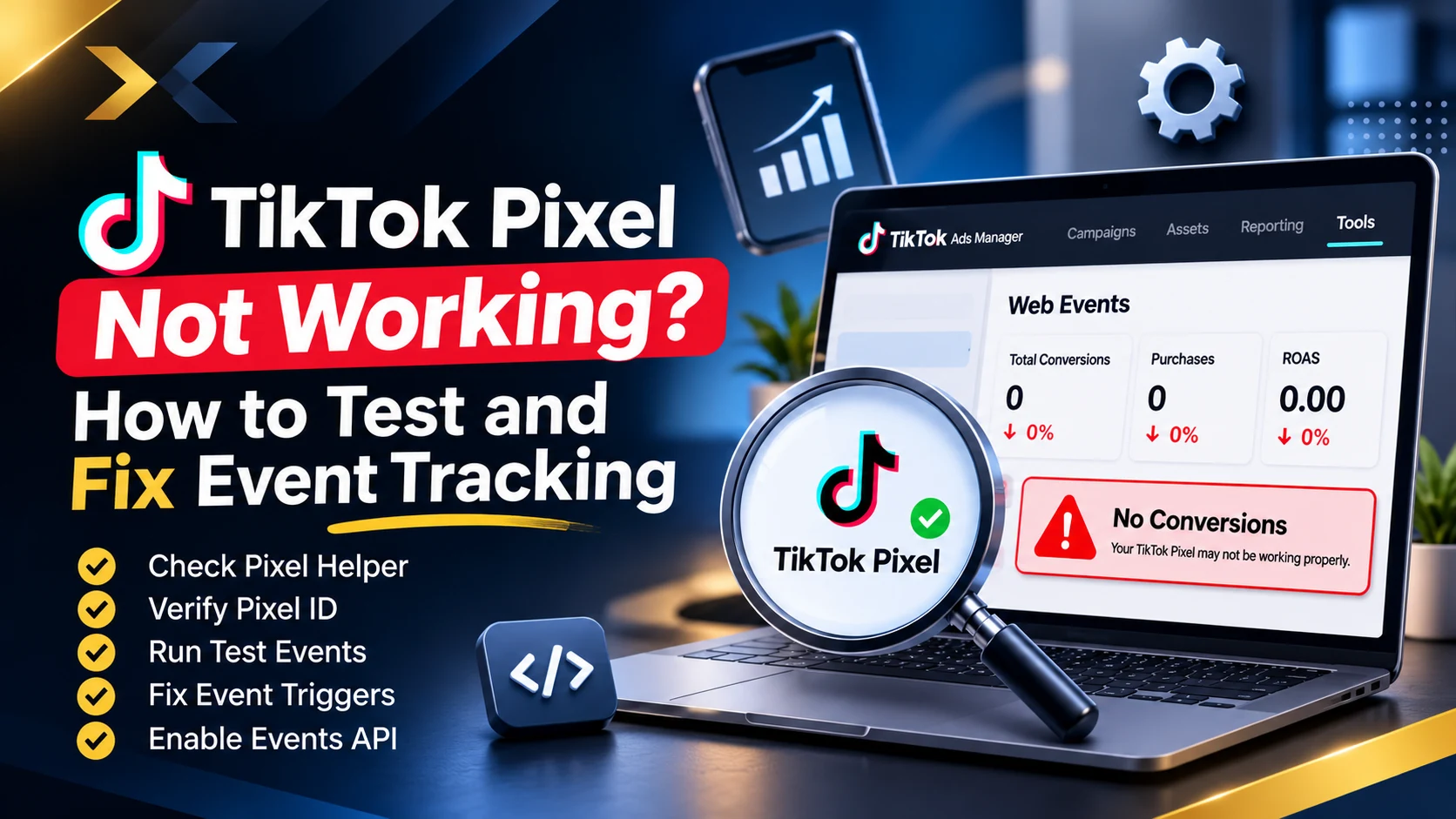
You launch a TikTok ad campaign, traffic begins visiting your online store or landing page, and customer orders start rolling in. However, when you inspect TikTok Ads Manager, your reporting shows 0 conversions, 0 purchases, and a completely blank Return on Ad Spend (ROAS).
The TikTok Pixel is a JavaScript snippet that tracks actions taken by visitors on your website and sends that telemetry back to TikTok to optimize ad delivery. When it stops tracking, the failure is usually caused by blocked browser scripts, mismatched Pixel IDs across platforms, broken Event Builder anchors, or unformatted server-side Events API payloads.
Without verified conversion signals, TikTok serves your budget to low-intent users, cost per result spikes, and retargeting pools remain empty. Follow this sequential five-step diagnostic framework to test your pixel implementation, isolate the tracking fault, and restore live data flow.
“Wasted ad spend, distorted ROAS metrics, and broken retargeting funnels. TikTok's machine learning optimizes ad delivery based on conversion signals. Without signal data, TikTok serves ads to random, low-intent users, driving up your cost per result while high-value cart abandoner audiences remain completely empty.”
Clear the Basics: Diagnostic Checklist
Before altering any tags, rule out account-level and environment roadblocks. Use this fast reference table to pinpoint where the bottleneck lives:
| Level | Failure Point | What to Look For | Immediate Action |
|---|---|---|---|
| Browser Extension | Script Blocked or Uninstalled | Red error indicator or 'No Pixel Detected' in the TikTok Pixel Helper Chrome extension | Ensure pixel base code is placed within the document <head> tag and disable local ad blockers during testing |
| Pixel ID Match | ID Disconnect Across Platforms | Pixel ID on your website integration does not match active TikTok Ads Manager ID | Re-enter the correct 16-to-20-character Pixel ID in your CMS app (Shopify/WooCommerce) or GTM tag |
| Test Events Tool | Silent Trigger Failure | Events fail to appear in TikTok Events Manager Test Events tab during manual site testing | Generate a test URL or QR code in Test Events, perform a live checkout, and inspect incoming payload timestamps |
| Event Triggers | Broken Event Builder Anchors | Pageview fires normally, but CompletePayment or SubmitForm never registers | Re-anchor button click selectors in Event Builder or switch critical conversions to thank-you URL rules |
| Signal Loss | Browser-Only Data Loss (iOS / Privacy) | Significant gap between store orders and TikTok reported conversions | Enable TikTok Events API (server-side tracking) and toggle Automatic Advanced Matching ON |
2. Step-by-Step Fixes
Follow these sequential troubleshooting steps to identify the technical break and restore accurate tracking data.
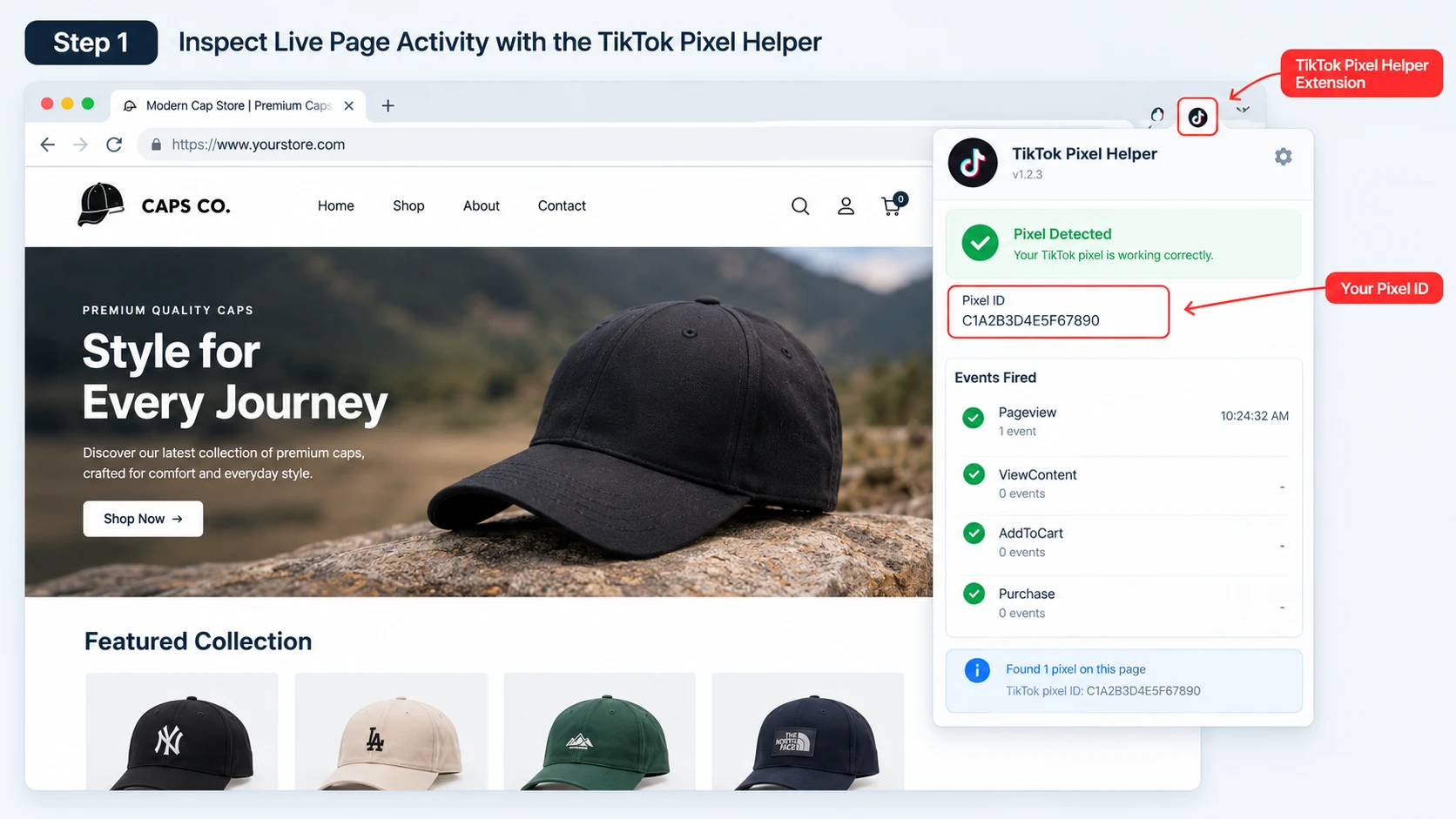
Inspect Live Page Activity with the TikTok Pixel Helper
Before modifying website code or ad settings, check if the browser can physically detect your pixel code when the page loads.
Action Checklist:
- 1Open Google Chrome and install the official TikTok Pixel Helper extension from the Chrome Web Store.
- 2Disable any browser ad blockers (such as uBlock Origin or AdBlock) and open your website in a new tab.
- 3Click the TikTok Pixel Helper icon in your browser toolbar to inspect the diagnostic panel.
- 4Pixel Detected: It displays your Pixel ID along with events fired (e.g., Pageview with a green checkmark).
- 5No Pixel Detected: The pixel script is missing from your theme's <head> tags, or a tag manager container is not publishing the tag.
- 6Verification: Click through a few pages on your site; the extension badge counter should update and show green checkmarks next to Pageview.
LK Digital Pro Tip: Always test in an Incognito window with ad blockers disabled. Aggressive privacy extensions and browser-level tracking preventers (like Brave Shields or Safari ITP) frequently block outbound beacon requests to analytics endpoints, leading to false-alarm troubleshooting.
Compare the Pixel ID Across Your Store and Ads Manager
A common mistake during store redesigns, developer handovers, or agency onboarding is sending ad traffic to a page running an old, orphaned, or inactive Pixel ID.
Action Checklist:
- 1In TikTok Ads Manager, navigate to Tools > Events > Web Events.
- 2Locate the pixel designated for your store and copy its 16-to-20-character Pixel ID.
- 3Now check your website integration: In Shopify, WooCommerce, or BigCommerce, open your TikTok sales channel or pixel plugin settings and inspect the connected Pixel ID.
- 4Google Tag Manager: Open your TikTok base pixel tag and inspect the Pixel ID field.
- 5The Fix: If the IDs do not match character-for-character, update the CMS platform integration with the exact active ID from Ads Manager and save/publish changes.
- 6Verification: Re-open your website, click the TikTok Pixel Helper extension, and confirm that the displayed Pixel ID matches your active Ads Manager ID.
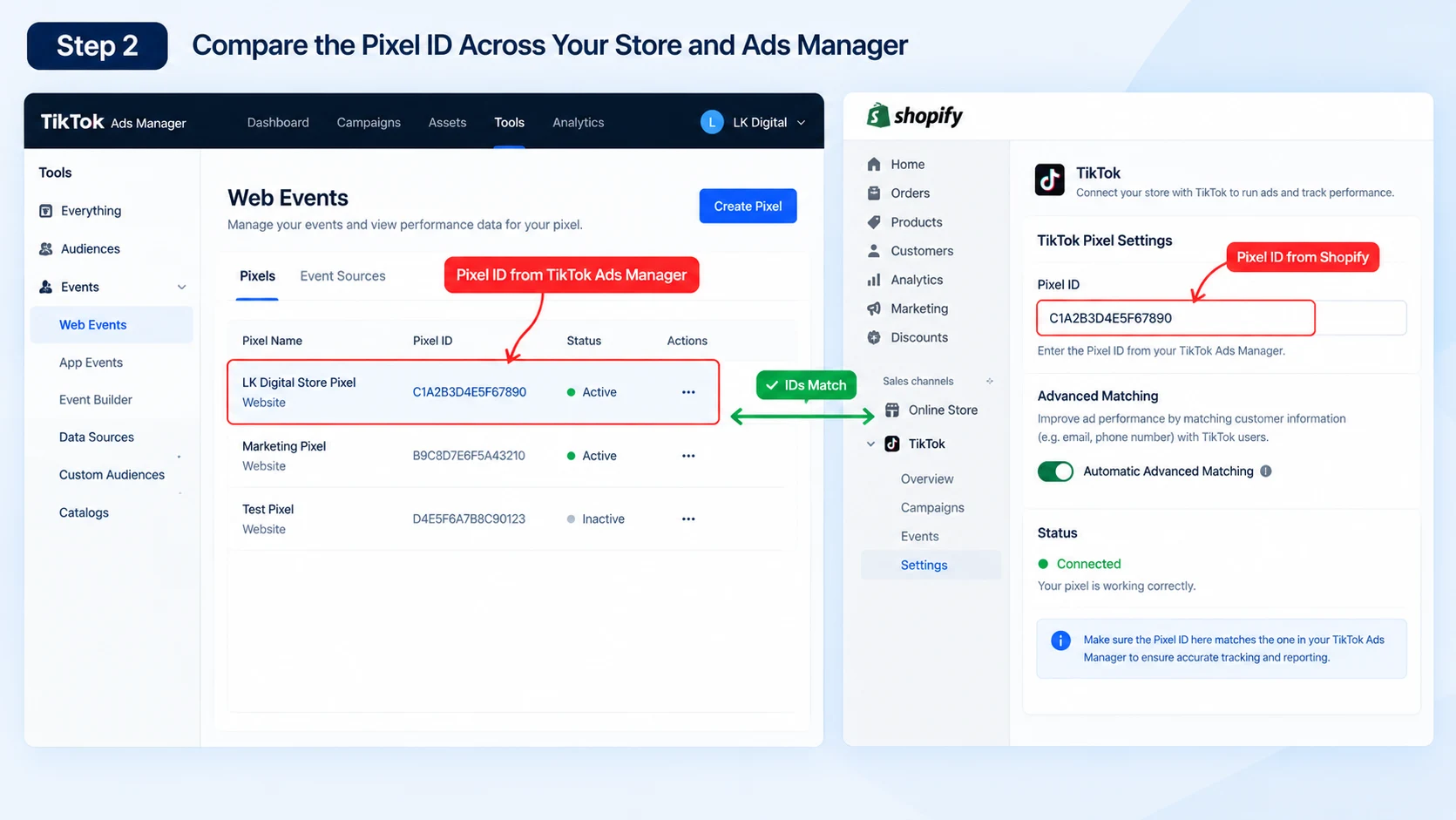
LK Digital Pro Tip: If you recently migrated to Shopify's new TikTok sales channel app, ensure any legacy hardcoded scripts in theme.liquid or checkout.liquid are completely removed to prevent duplicate firing or ID collisions.
Run Real-Time Diagnostics in the Test Events Sandbox
Do not wait for live ad spend or real customer purchases to see if events track. Use TikTok’s native diagnostic sandbox to monitor payload telemetry in real time.
Action Checklist:
- 1In TikTok Ads Manager, go to Tools > Events > Web Events and click into your active pixel.
- 2Select the Test Events tab in the top navigation.
- 3Navigate to the Test Event Code or QR Code / URL generation section.
- 4Enter your website landing page URL into the input field and click Open Website (for desktop) or scan the QR Code on mobile.
- 5Execute an actual test conversion journey on your store: add an item to cart, proceed to checkout, or submit a test lead form.
- 6The Fix: Return to the Test Events tab in Ads Manager. Look for incoming events (such as ViewContent, AddToCart, or CompletePayment). If events fail to appear, your triggers need re-anchoring in Event Builder or Google Tag Manager.
- 7Verification: The Test Events table should populate with the event name, timestamp, and payload parameters (currency, value, content_id) within 10 to 30 seconds.
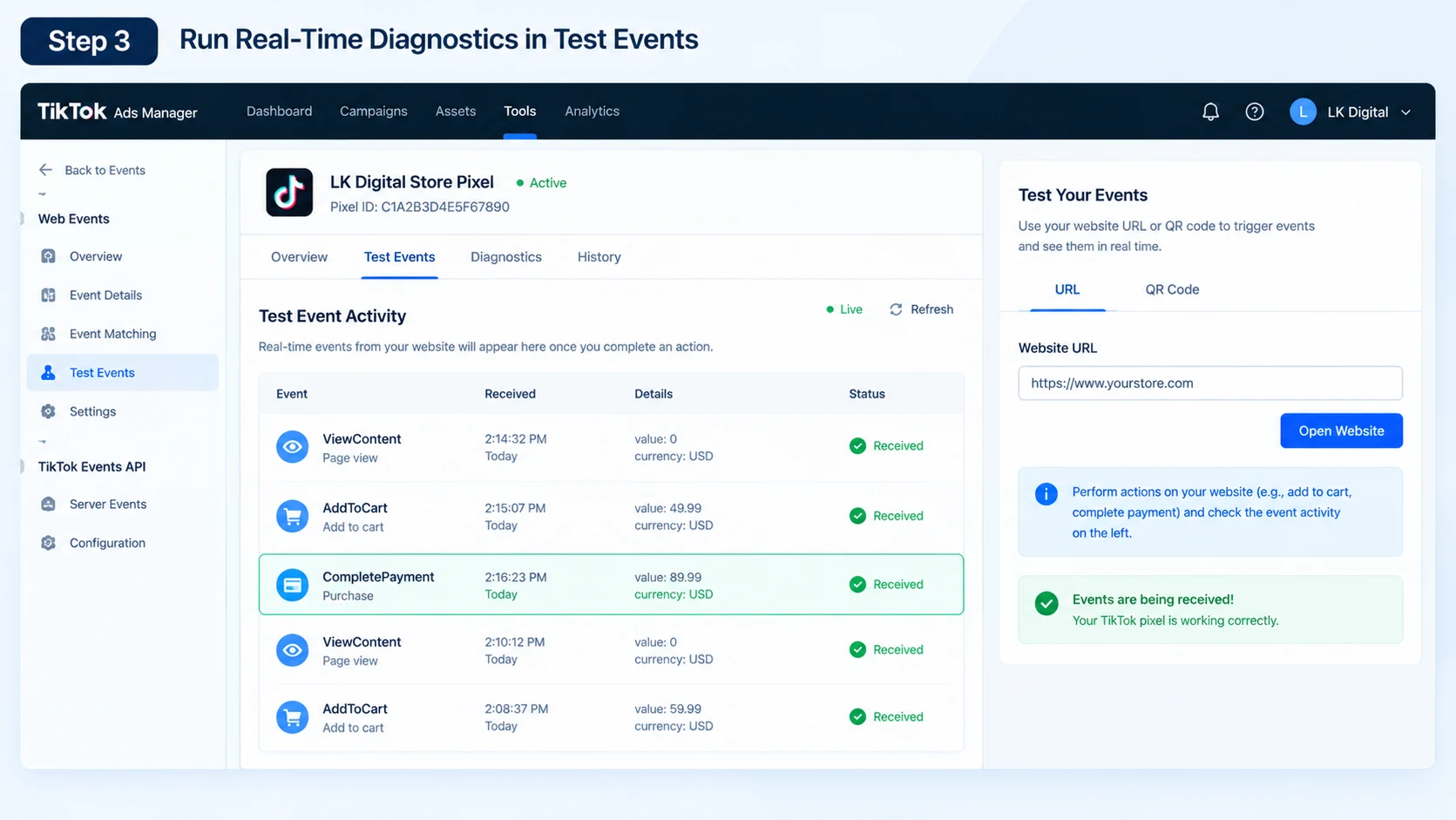
LK Digital Pro Tip: Verify that the currency (e.g., GBP, USD) and value parameters pass properly with your CompletePayment event. TikTok Smart Performance Campaigns (SPC) require accurate monetary value parameters to optimize for Return on Ad Spend (ROAS).
Fix Broken Event Triggers in TikTok Event Builder
If your base Pageview works, but high-value actions like CompletePayment, AddToCart, or ClickButton never fire, your event setup rules have lost their CSS anchor elements.
Action Checklist:
- 1Inside your pixel settings in Events Manager, click Settings > Enter Event Builder (or open your visual event configuration).
- 2Review your conversion setup method: URL Rules vs. Click Events.
- 3URL Destination Rules: Verify that your confirmation or thank-you page URL structure hasn't changed (e.g., ensuring checkout redirects to /thank-you or /orders/ as defined).
- 4Click Events: If you track clicks on a specific CTA button (e.g., 'Book Now' or 'Place Order'), check whether a recent theme update altered the button's CSS selector class or button label text.
- 5The Fix: Re-select the interactive button directly in the visual Event Builder overlay, or switch critical conversions to a URL destination rule based on the final order confirmation screen.
- 6Verification: Repeat the user checkout journey and confirm in the Pixel Helper that the event fires immediately upon reaching the thank-you screen.
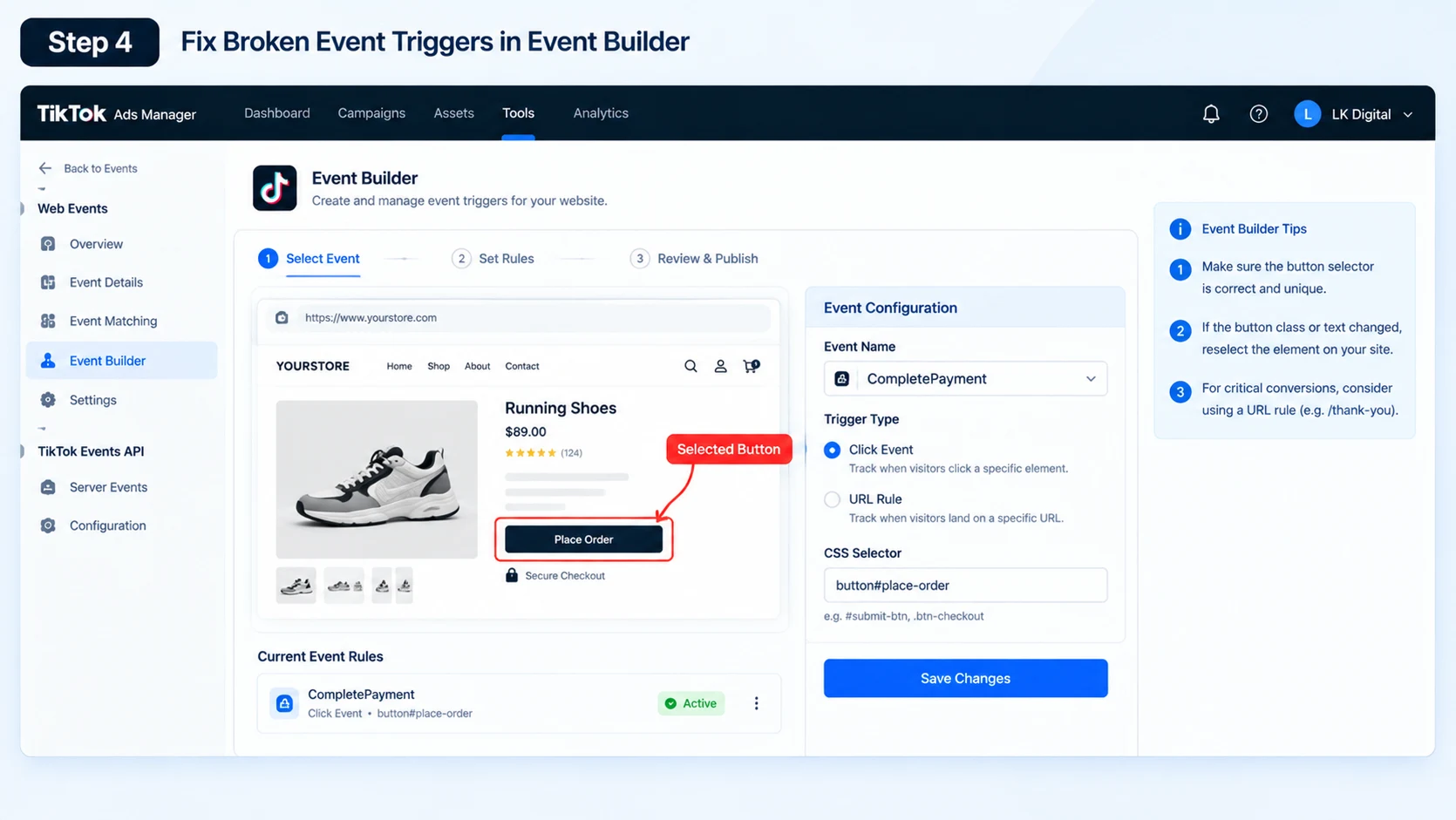
LK Digital Pro Tip: URL destination rules on order confirmation pages are far more resilient than click-based button triggers. If a user's browser lags or closes before an AJAX button request finishes, click triggers fail; URL confirmation rules fire reliably as soon as the thank-you page renders.
Implement and Verify the TikTok Events API (Server-Side Tracking)
Browser tracking alone loses 15% to 30% of event data due to iOS privacy measures (ATT), ad blockers, and cookie restrictions. Pairing the web pixel with server-side tracking recovers this lost revenue attribution.
Action Checklist:
- 1In TikTok Ads Manager, go to Web Events > select your pixel > Settings.
- 2Scroll to TikTok Events API and review your connection method (Partner Integration via Shopify/WooCommerce, or Gateway via Google Tag Manager Server Container).
- 3Ensure Automatic Advanced Matching is toggled ON to securely pass hashed customer emails and phone numbers for enhanced cross-device attribution.
- 4The Fix: If using a direct eCommerce partner integration, disconnect and reconnect the official TikTok sales channel to regenerate and sync the Conversions API access token.
- 5Verification: In Events Manager, inspect the Event Details overview; review the Connection Method breakdown showing events received from both Browser and Server with clean deduplication.
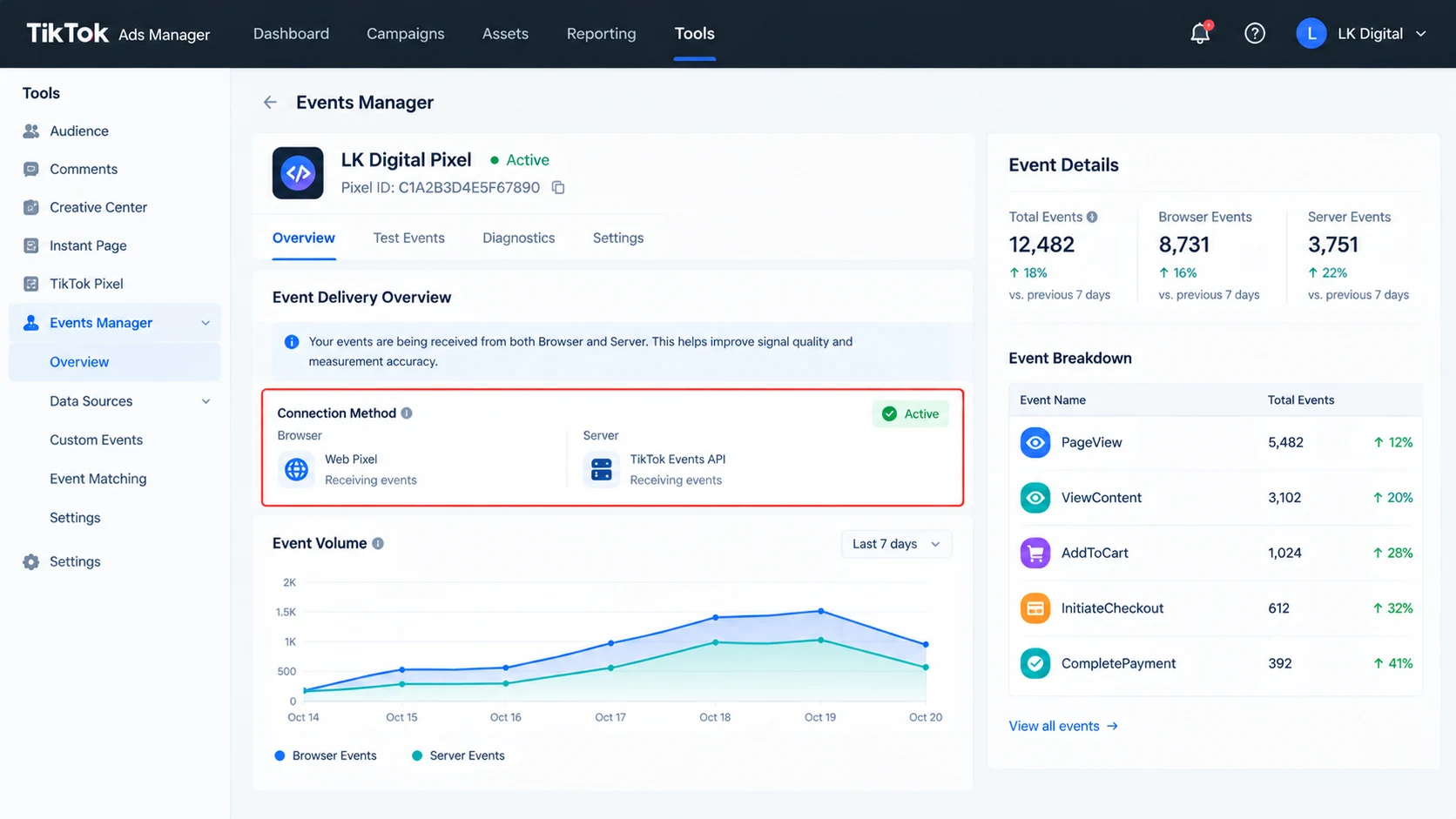
LK Digital Pro Tip: Always pass identical event_id parameters between your browser pixel and server-side Events API payloads. This allows TikTok's deduplication engine to merge redundant events into a single conversion rather than double-counting your sales.
How Long Until Tracking & Delivery Restores?
Once these adjustments are applied, event verification and attribution reconnect according to these pacing benchmarks:
Immediate green checkmark in TikTok Pixel Helper once base code executes in the document head.
Real-time sync between Shopify/WooCommerce and TikTok Events Manager dashboard.
CompletePayment and AddToCart triggers fire reliably upon user interaction or URL load.
Full attribution recovery and deduplication linkage across iOS and privacy-restricted sessions.
TikTok Ads Manager reporting can experience a 2 to 24-hour reporting latency for conversion attribution under SKAdNetwork and automated auction modeling. If your events fire cleanly in the Test Events tool and Pixel Helper, do not alter your campaigns prematurely. Allow at least 24 hours for the attribution pipeline to consolidate data before making bidding or budget decisions.
Need a professional to handle your TikTok tracking?
If your TikTok Pixel still isn't tracking correctly after following this guide, there might be a deeper structural issue with your funnel or tracking. You don't have to waste time guessing.
Reach out to us at zidan@lkdigital.uk to have the LK Digital team diagnose and solve the problem for you.