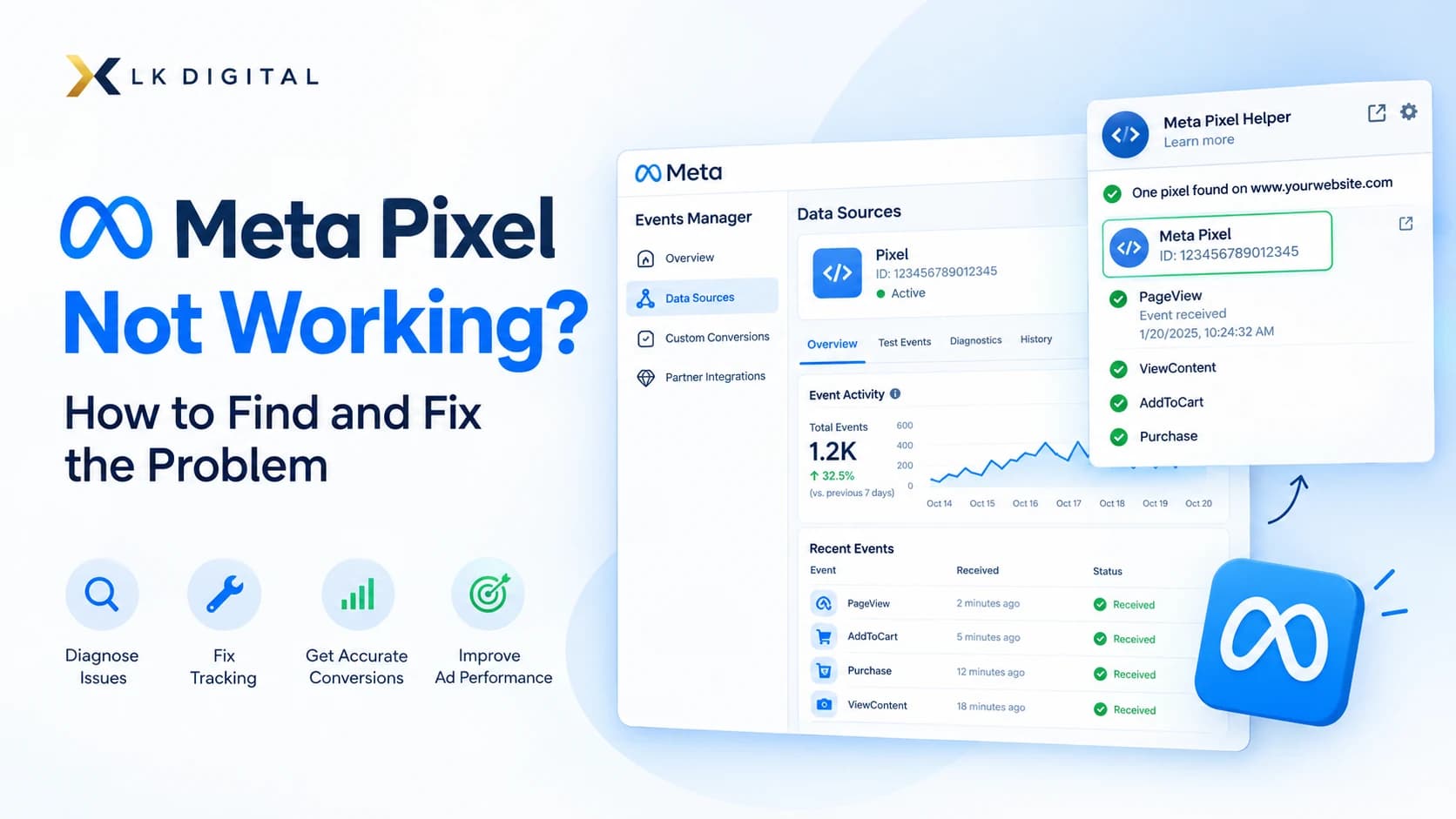
When your Meta Pixel fails, the business fallout is immediate. Leads submit forms and customers buy, yet Ads Manager records zero conversions.
Without accurate data, Meta optimizes on bad inputs, audiences drift, and critical performance decisions get made on partial or false data.
If your ad spend is burning but no conversions are tracking, it is usually a technical disconnect between your website and Meta's servers. Here is the step-by-step diagnostic process to find the break and fix your tracking.
“When your Meta Pixel fails, the business fallout is immediate. Leads submit forms and customers buy, yet Ads Manager records zero conversions. Without accurate data, Meta optimizes on bad inputs, audiences drift, and performance decisions get made on partial or false data.”
Clear the Basics: Diagnostic Checklist
Before altering any tags, rule out account-level and environment roadblocks. Use this fast reference table to pinpoint where the bottleneck lives:
| Level | Failure Point | What to Look For | Immediate Action |
|---|---|---|---|
| Browser | Ad Blocker / VPN Shield Active | ERR_BLOCKED_BY_CLIENT in Network tab; Meta Pixel Helper icon remains gray | Test in Chrome Incognito with all extensions disabled; whitelist domain |
| Pixel ID | Typo or Dataset ID Mismatch | Pixel Helper reports events, but Events Manager dashboard displays 0 activity | Cross-check Pixel ID in helper panel against Events Manager Dataset ID |
| Tag Layer | Duplicate Pixel Installations | 'Pixel Activated Multiple Times' warning; reported purchases double real sales | Search page source for duplicate fbevents.js calls; remove extra snippets |
| Data Flow | Payload Drop or CSP Blocking | Events fire locally, but Test Events tab in Events Manager logs zero incoming data | Check Content-Security-Policy header; inspect network POST requests to /tr/ |
| Attribution | Unverified Domain Permissions | Events show in Events Manager, but Ads Manager reports 0 attributed conversions | Verify root domain via DNS TXT record in Brand Safety > Domains |
2. Step-by-Step Fixes
Follow these sequential troubleshooting steps to identify the technical break and restore accurate tracking data.
Disable Ad Blockers and Use Incognito Mode
Before changing any code, you must ensure your own browser isn't the problem. Ad blockers, antivirus software, and VPNs are common culprits that block the Pixel from loading on your site. Testing in Chrome incognito with ad blockers disabled helps confirm whether events fire without browser interference. Using Incognito mode also prevents session conflicts and avoids cached data interfering with your tracking tests.
Action Checklist:
- 1Open Google Chrome, Safari, or Microsoft Edge and launch a fresh Incognito or Private Browsing window.
- 2Ensure all browser extensions (especially uBlock Origin, Adblock Plus, Ghostery, and Privacy Badger) are fully disabled in Incognito mode.
- 3Disable network-level blockers like Brave Shields, Pi-hole, corporate VPNs, or Apple iCloud Private Relay.
- 4Open Chrome DevTools (press F12 or Cmd + Option + I), navigate to the Network tab, filter by 'fbevents.js', and reload your site.
- 5Verify that fbevents.js returns HTTP status 200 OK. If you see 'net::ERR_BLOCKED_BY_CLIENT', your browser or antivirus software is actively intercepting the tracking script.
LK Digital Pro Tip: Always test conversion tracking from an isolated Incognito session or clean Guest profile. Active CMS admin cookies (like Shopify admin, WordPress WP-Admin, or Tag Manager preview modes) can inject debug tokens or suppress customer-facing tracking pixels.
Check the Code with Meta Pixel Helper
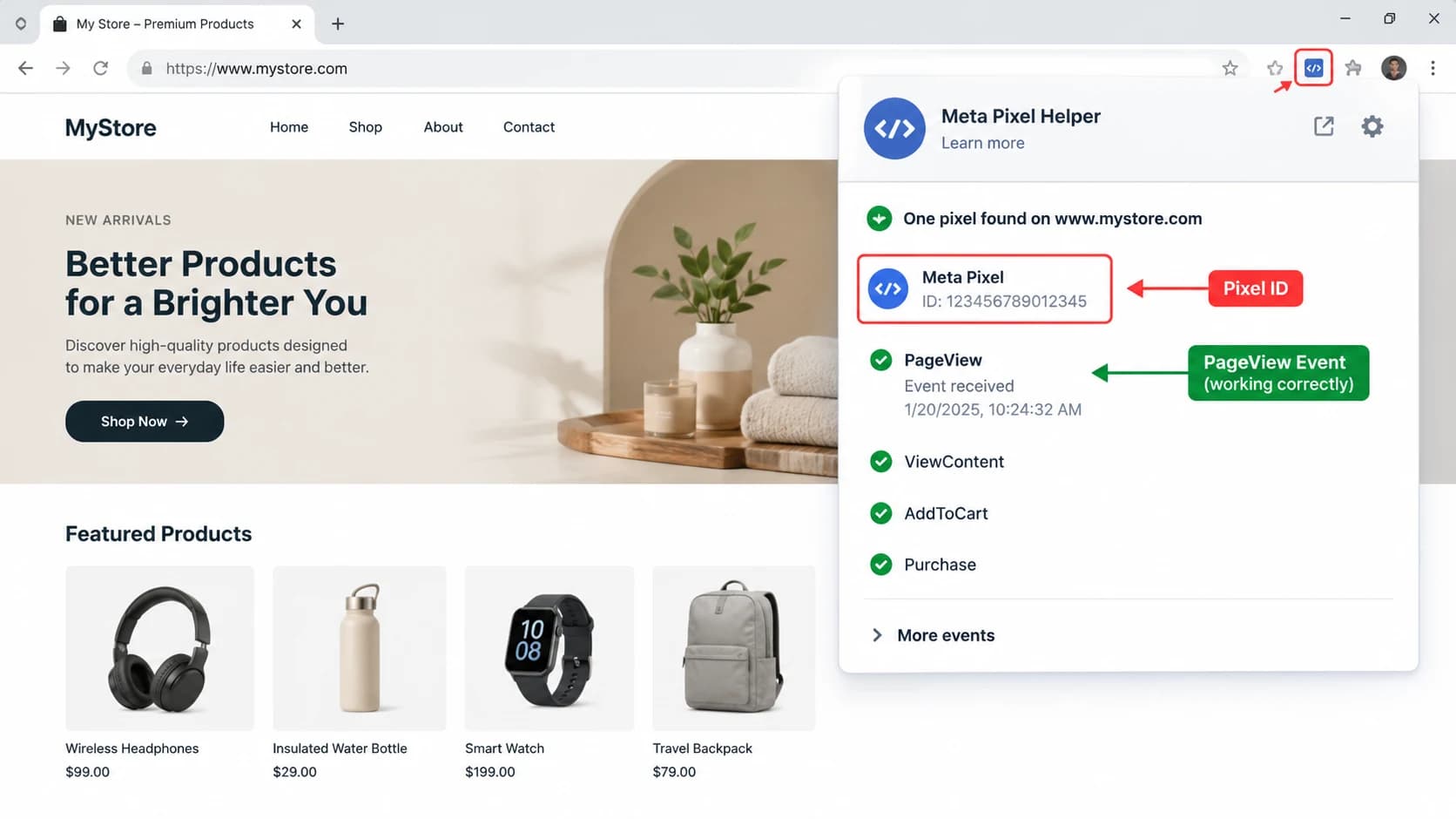
The fastest way to check your website's baseline tracking is to use Meta's official browser tool. Add the Meta Pixel Helper Chrome extension to your browser from the Chrome Web Store. This extension is the fastest first check to tell you whether a pixel is detected, which events fire, and whether the browser sees obvious errors. Watch the Pixel Helper panel as you take an action on your site to confirm the event name matches the action and no red errors appear. Use the helper to check the active Pixel ID on your page and compare it to the ID inside your Events Manager. A single typo in your Pixel ID silently kills all tracking.
Action Checklist:
- 1Install the official Meta Pixel Helper extension from the Chrome Web Store.
- 2Navigate to your website and click the Meta Pixel Helper icon in your Chrome extensions toolbar.
- 3Confirm that the extension turns blue and shows a numeric badge counter indicating detected events.
- 4Expand the panel and look for the green checkmark next to 'PageView' and your conversion actions (such as 'ViewContent', 'AddToCart', or 'Purchase').
- 5Crucial Step: Check the active Pixel ID in the helper panel and compare it character-for-character against the Dataset ID inside Meta Events Manager > Data Sources. A single typo or wrong account ID silently misdirects all tracking data into an empty dataset.
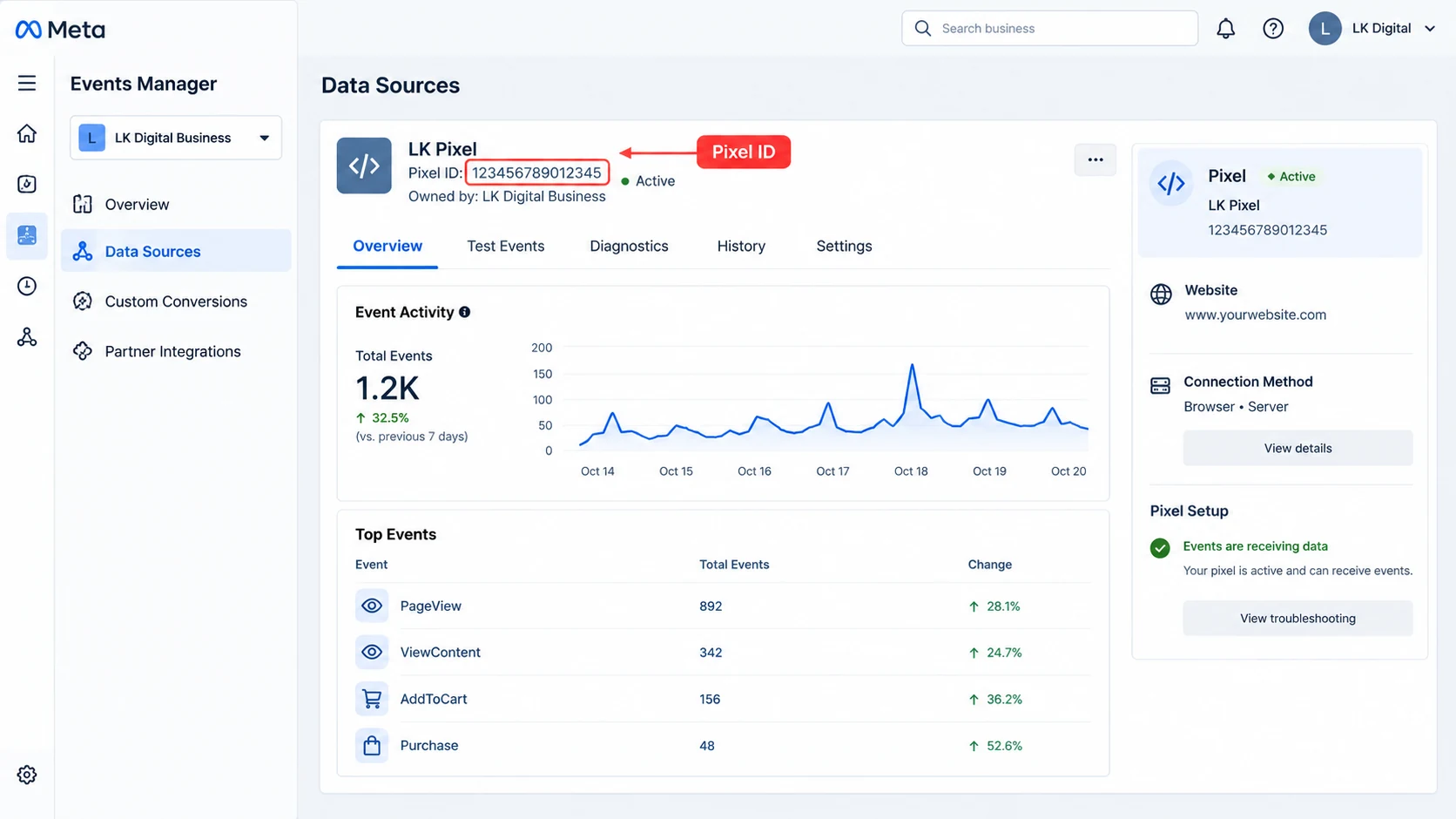
LK Digital Pro Tip: If Meta Pixel Helper shows a yellow warning stating 'Pixel Took Too Long to Load', your base snippet is placed too far down the page (e.g. in the footer). Move the base script into the `<head>` section so it executes before fast-bouncing visitors leave your site.
Remove Duplicate Pixel Installations
If your dashboard shows double the amount of purchases or page views, your pixel is firing twice per action. Duplicate installations happen when the same Pixel ID is installed multiple times, such as through a Shopify app, Google Tag Manager, and hardcoded theme files. If the Pixel Helper flags 'Pixel Activated Multiple Times', duplicate code is inflating your event counts and skewing your reports. To fix this, check your page source for fbevents.js and remove the extra snippets if it appears more than once.
Action Checklist:
- 1Open your live website in Google Chrome, right-click anywhere, and choose 'View Page Source' (Ctrl + U or Cmd + Option + U).
- 2Press Ctrl + F (or Cmd + F) and search for 'fbevents.js' and your numeric Pixel ID.
- 3Check how many instances of the base snippet and fbq('init', '...') appear in the HTML.
- 4Audit your CMS apps and tag layers: if you use Shopify Facebook & Instagram App or WooCommerce Meta extension, confirm you did not ALSO paste the manual code into theme.liquid or trigger a duplicate tag inside Google Tag Manager.
- 5If you run both browser Pixel and server-side Conversions API (CAPI), ensure proper deduplication by sending identical event_id and event_name parameters on both signals.
LK Digital Pro Tip: Pick a single source of truth for your tracking architecture. If you use Google Tag Manager, manage all client-side and server-side Meta tags through GTM. Avoid mixing automated CMS apps with manual theme code snippets, which frequently causes race conditions and skewed event counts.
Run Live Diagnostics in Test Events
Just because the pixel fires on your website does not guarantee Meta is receiving the payload. Open the Test Events tool inside Meta Events Manager. Enter your website's URL, perform actions like adding an item to the cart, and see which events are triggered along with their parameters in real time. If you are using the Conversions API, server-side events will appear under the Server source in this tab to confirm your backend integration is transmitting to Meta.
Action Checklist:
- 1Open Meta Events Manager (business.facebook.com/events_manager2) and select your Data Source.
- 2Click on the 'Test Events' tab in the horizontal navigation bar.
- 3Under 'Confirm your website events are set up correctly', enter your website URL and click 'Open Website'.
- 4Interact with your site: view products, add an item to the shopping cart, and submit a test lead form.
- 5Switch back to the Test Events tab: incoming events should appear in real time under the Activity feed with parameters and timestamps.
- 6Inspect the 'Source' column: client-side events display 'Browser', while server-side events display 'Server'. If deduplication is active, Meta groups them together as a deduplicated pair.
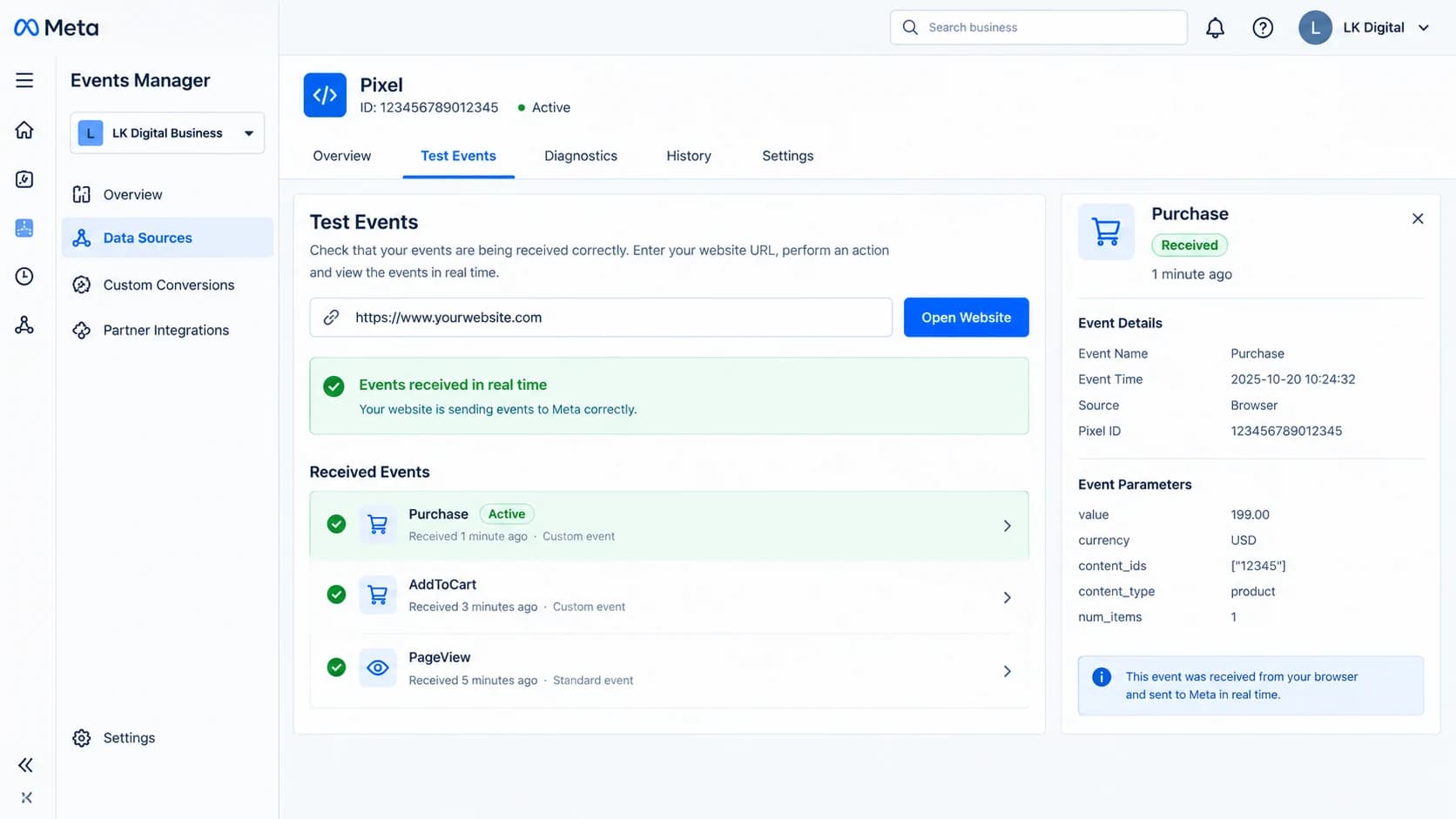
LK Digital Pro Tip: If events fire in the browser extension but never register in the Test Events tab, check your website's Content Security Policy (CSP) headers. Strict CSP directives frequently block outbound POST requests to `https://www.facebook.com/tr/`.
Verify Your Domain for Attribution
If your pixel is active but sales still aren't attributing to your ad campaigns, you may have a domain permissions issue. If your domain isn't verified in Meta Business Manager, your pixel might fire, but the events won't be attributed properly to your ads. Unverified domains can lose up to 80% of tracked events. To verify, go to Business Manager, navigate to Brand Safety, select Domains, and look for a green 'Verified' badge next to your primary domain.
Action Checklist:
- 1Open Meta Business Settings (business.facebook.com/settings).
- 2In the left-hand navigation sidebar, expand 'Brand Safety and Suitability' and select 'Domains'.
- 3Check whether your primary domain is listed and whether it displays a green 'Verified' status badge.
- 4If it is not verified, click 'Add' → 'Create a new domain' and enter your root domain (without https:// or www).
- 5Choose your preferred verification method: DNS TXT record (recommended for speed and stability), HTML file upload, or meta-tag verification.
- 6Add the DNS TXT record in your DNS provider (Cloudflare, GoDaddy, Namecheap) and click 'Verify Domain' once DNS propagation completes.
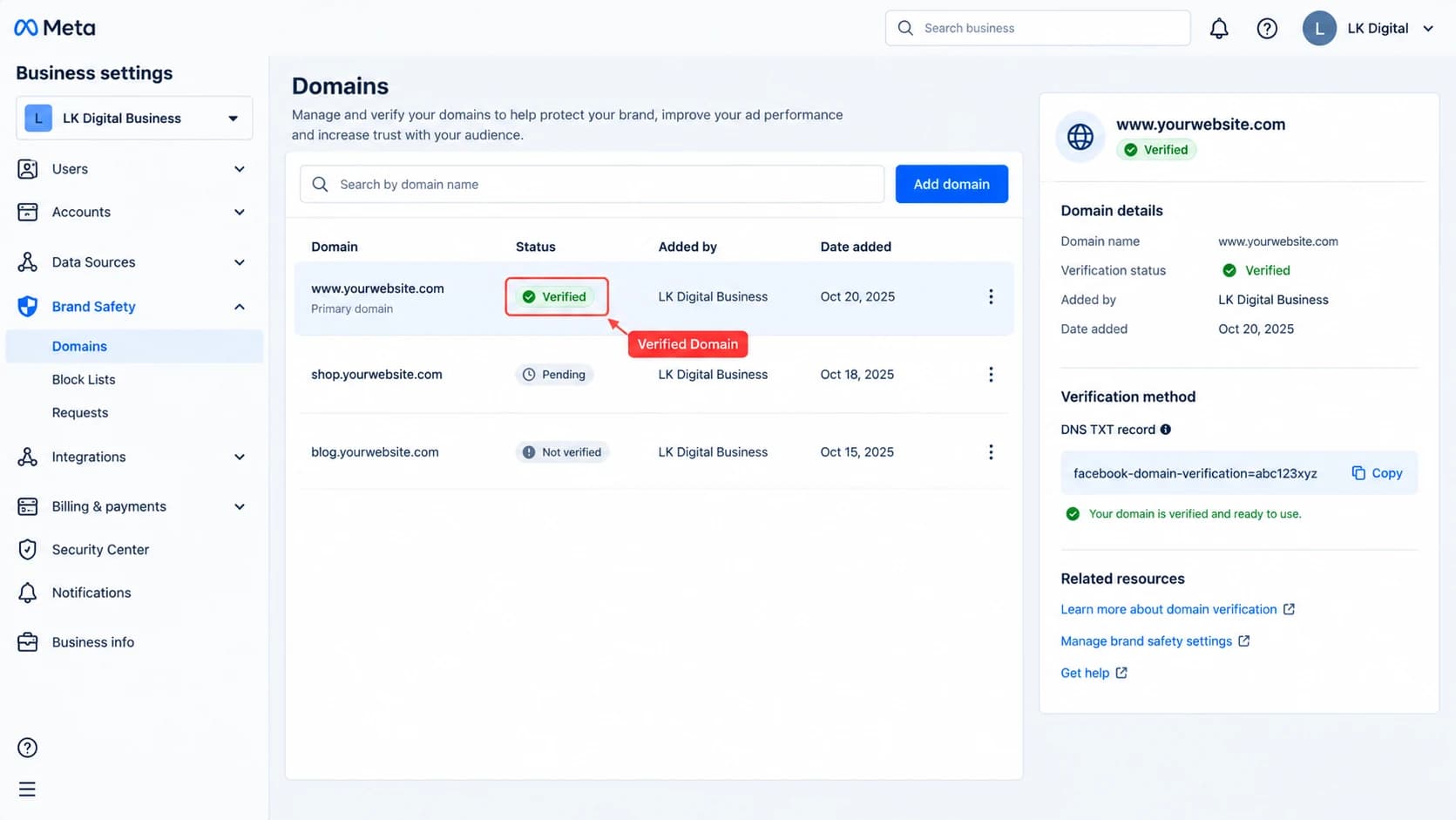
LK Digital Pro Tip: Always use DNS TXT record verification rather than HTML meta tags. If a developer updates your CMS theme or purges head scripts, meta-tag verification can silently break, causing your domain to lose verified status without warning.
How Long Until Tracking & Delivery Restores?
Once these adjustments are applied, event verification and attribution reconnect according to these pacing benchmarks:
Immediate confirmation once local extension interference is cleared and test events fire in real time.
Double-counting stops as soon as duplicate base codes are removed and browser/CDN caches refresh.
DNS record propagation across global servers and full attribution linking inside Meta Ads Manager.
Even a perfectly configured browser Pixel loses 25% to 35% of conversion events due to Safari ITP, iOS 14.5+ ATT restrictions, and ad-blocking extensions. Implementing Meta Conversions API (CAPI) alongside your Pixel routes event payloads directly from your server to Meta's servers, completely bypassing browser limitations and ensuring maximum attribution accuracy.
Need a professional to handle this?
If your Meta Pixel still isn't tracking correctly after following this guide, there might be a deeper structural issue with your funnel or tracking. You don't have to waste time guessing.
Reach out to us at zidan@lkdigital.uk to have the LK Digital team diagnose and solve the problem for you.