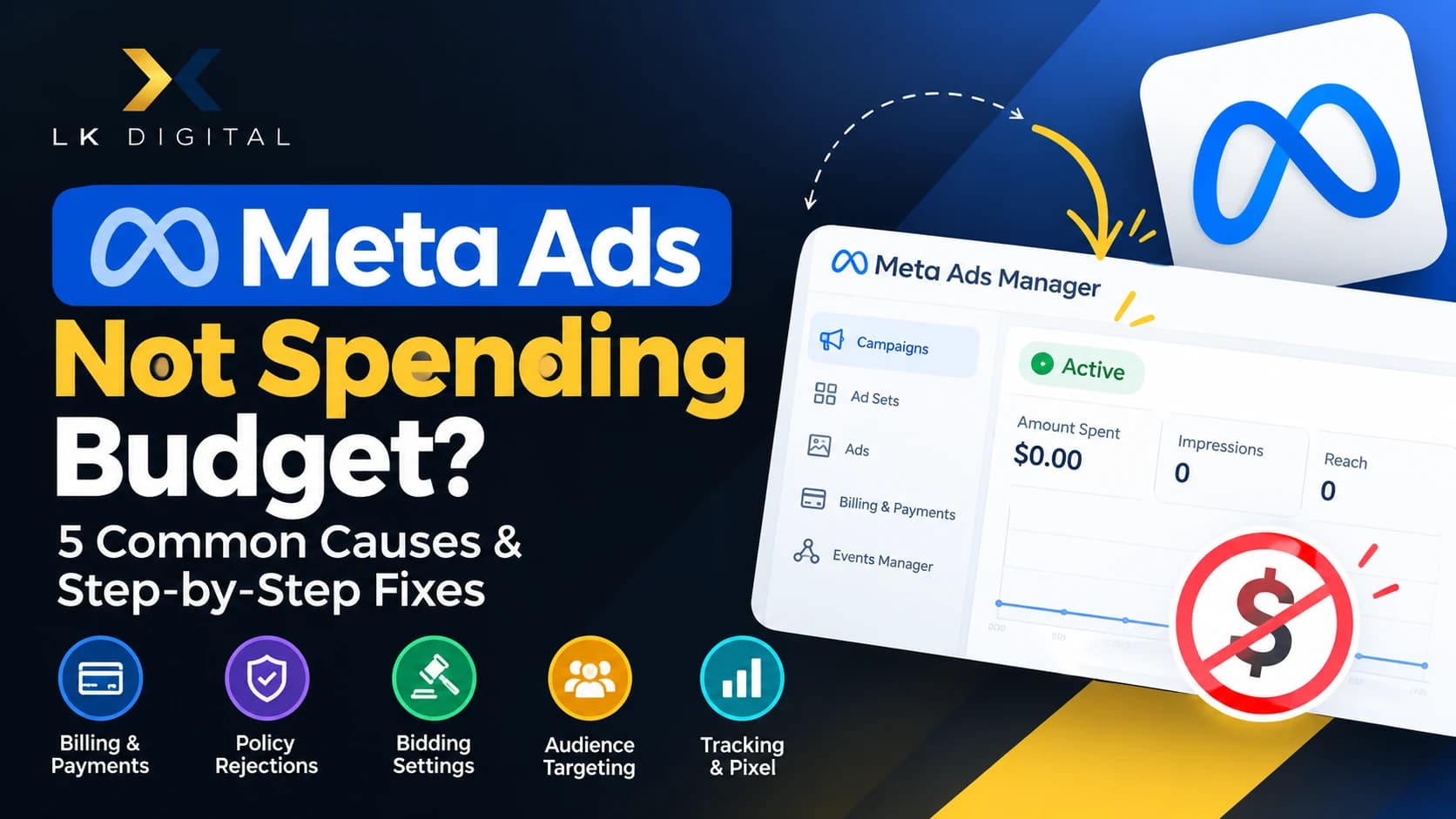
You just hit Publish on a brand-new Meta ad campaign. The dashboard displays a reassuring green "Active" status. Your creative is polished, your copy is sharp, and your target audience is set.
Twenty-four hours pass. You log into Meta Ads Manager, expecting an influx of fresh leads or purchases, only to find a frustrating wall of zeroes:
“When an active Meta campaign refuses to spend, your entire growth pipeline pauses. Leads stall, flash sales miss their window, and ad algorithms never gather the baseline data required to optimize.”
Clear the Basics: Diagnostic Checklist
Before altering any tags, rule out account-level and environment roadblocks. Use this fast reference table to pinpoint where the bottleneck lives:
| Level | Failure Point | What to Look For | Immediate Action |
|---|---|---|---|
| Account | Failed Billing / Cap Hit | Red payment alerts, expired card, or account spending threshold reached | Clear outstanding balance; reset or increase account spending limit |
| Ad Level | Silent Policy Rejection | "In Review" pending 48h+ or "Rejected" status hidden under campaign Active state | Request manual review in Account Quality or swap creative/copy |
| Ad Set | Bid/Cost Cap Unmet | Aggressive target cost per result preventing auction participation | Remove manual bid caps and switch bid strategy to Highest Volume |
| Audience | Severe Audience Saturation | Audience definition dial in red 'Specific' zone (estimated reach under 50,000) | Loosen stacked AND filters and enable Advantage+ detailed targeting |
| Pixel | Missing Tracking Signals | Zero conversion events fired on chosen optimization event (e.g., Purchase) | Test event firing in Events Manager; switch temporarily to higher-funnel event |
2. Step-by-Step Fixes
Follow these sequential troubleshooting steps to identify the technical break and restore accurate tracking data.
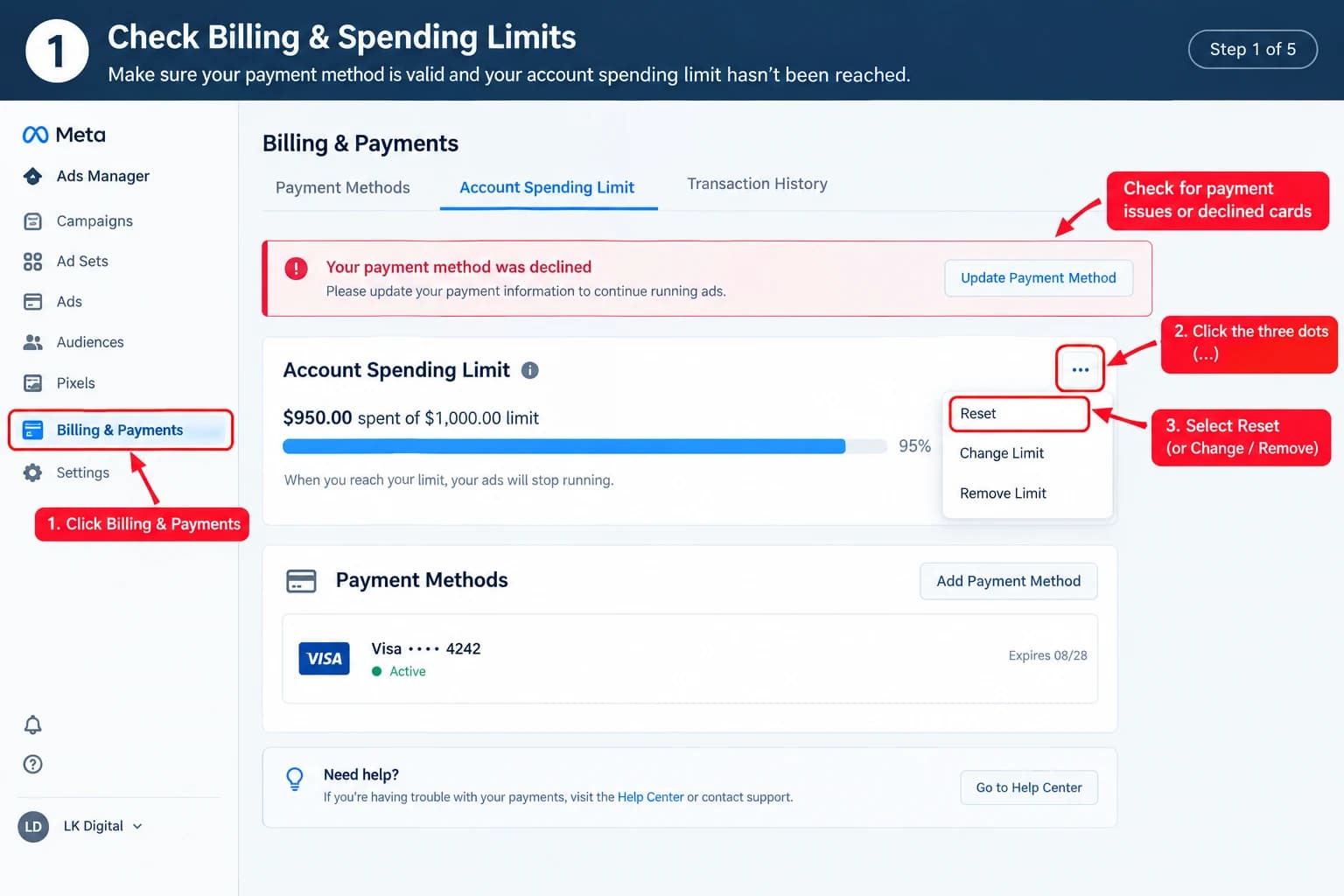
Verify Billing Status & Clear Spending Caps
A declined payment card, a temporary security authorization hold, or a forgotten spending ceiling instantly suspends auction bidding across all campaigns—even while statuses remain deceptively green.
Action Checklist:
- 1Open Meta Ads Manager and click the All Tools hamburger menu in the left sidebar.
- 2Select Billing & Payments from the menu.
- 3Check for payment failure notices, temporary security holds, or banking verification banners.
- 4Scroll down to Account Spending Limit. If the spent bar has reached the limit, click the three dots (...) and choose Reset, Change, or Remove.
LK Digital Pro Tip: If your card was declined due to automatic fraud security triggers from your bank, authorize the transaction with your banking app first before clicking 'Try Again' in Ads Manager to avoid getting your payment method locked.
Check the Ad Level for Hidden Rejections
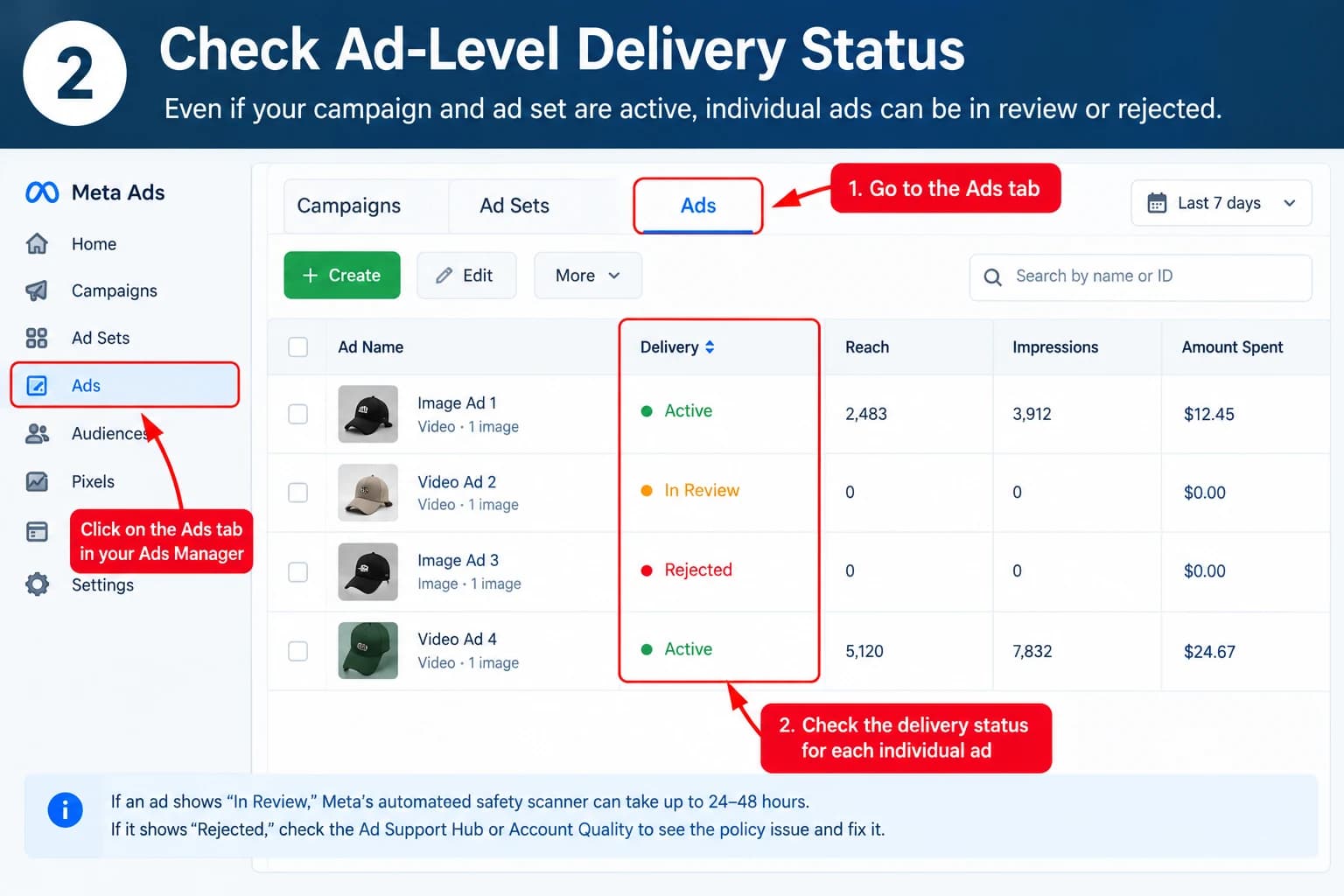
Campaign and Ad Set tabs frequently display 'Active' even when every underlying ad is frozen in review or flagged for policy violations. If all creatives inside an ad set are stalled, the entire ad set spends zero.
Action Checklist:
- 1In Ads Manager, click directly into the Ads tab (the third tab next to Campaigns and Ad Sets).
- 2Check the Delivery column for each individual ad.
- 3If an ad states In Review, Meta's automated safety scanner can take up to 24–48 hours during peak demand periods.
- 4If it states Rejected, click Edit → Ad Support Hub (or Account Quality) to see the flagged policy (e.g., misleading claims, restricted keywords, or landing page mismatch).
LK Digital Pro Tip: Always upload at least 3 to 5 ad variations per ad set. If one ad enters an extended compliance review, the other approved creatives will immediately enter auctions and start spending budget.
Switch Off Restrictive Bid Caps
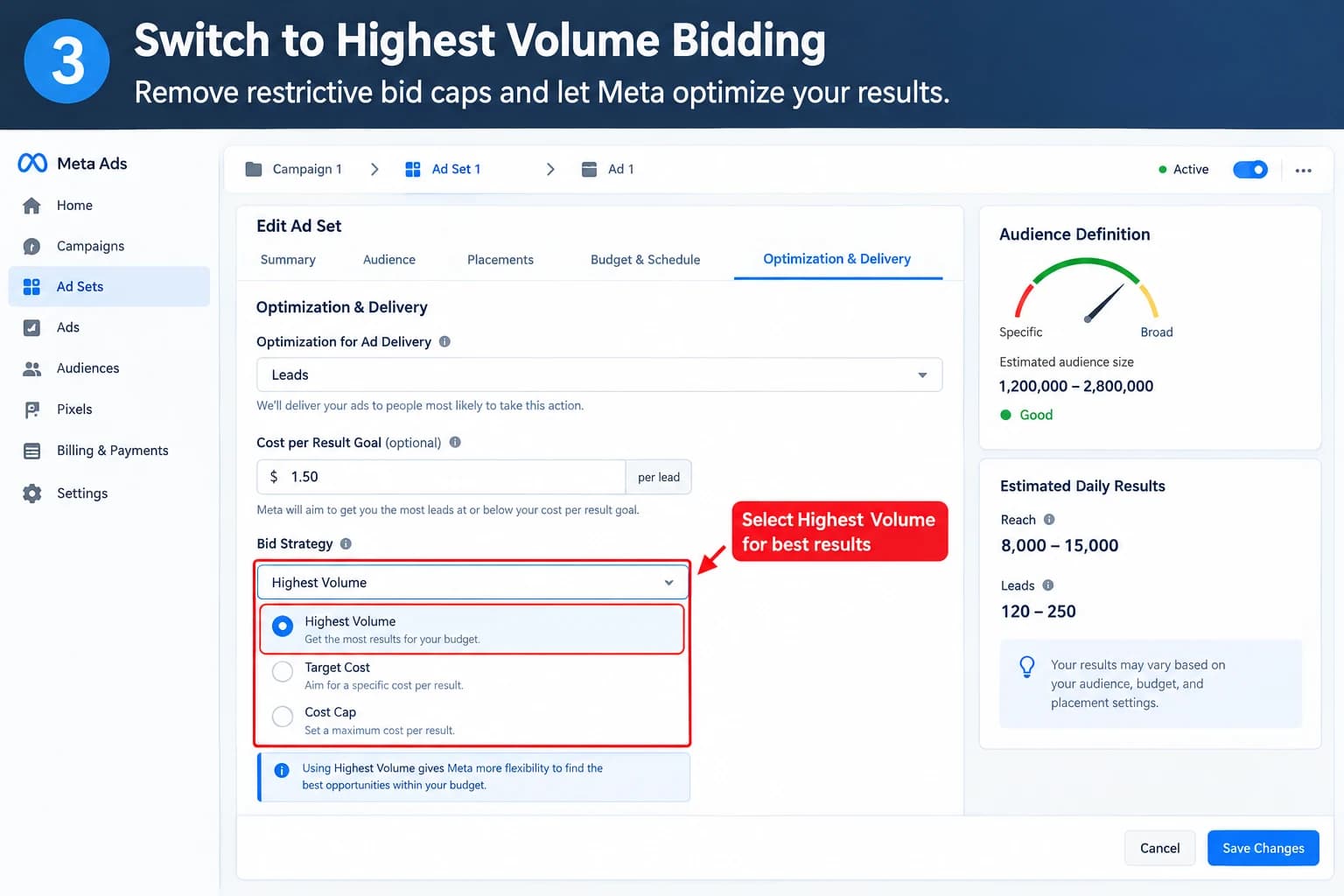
Setting a strict Cost Cap or Bid Cap tells Meta: 'Do not show my ad unless you can acquire a result for this exact price or lower.' If competitors are bidding higher during current auction auctions, Meta drops you from the auction entirely.
Action Checklist:
- 1Go to the Ad Sets tab in Ads Manager and select Edit on your stalled ad set.
- 2Scroll down to Cost Per Result Goal / Bid Control.
- 3If you placed a manual limit (e.g., "$1.50 per lead"), erase the amount completely.
- 4Set your bid strategy to Highest Volume (lowest cost). Let the auction run unconstrained for 48 hours to determine real-world market pricing.
LK Digital Pro Tip: Never apply cost caps to brand-new campaigns or cold audiences without prior historical CPA data. Start with Highest Volume for 30–50 conversions, discover your true baseline cost, and only then introduce cost caps at 20–30% above your average.
Loosen Hyper-Targeted Audience Filters
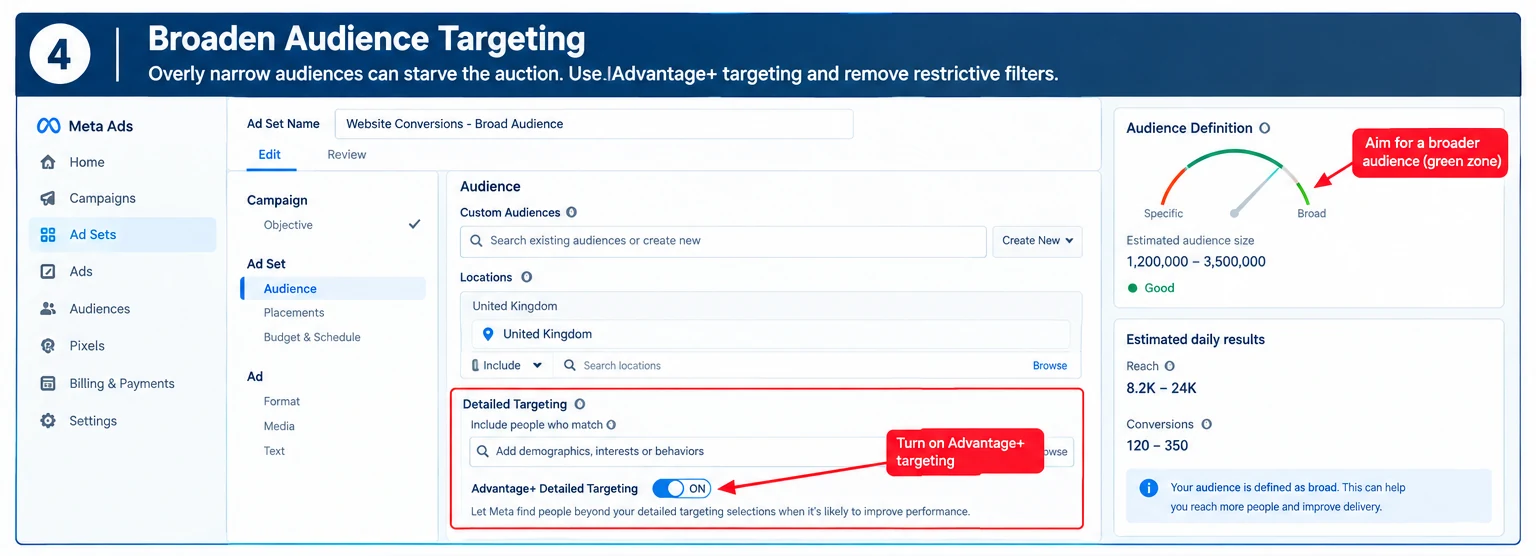
Overly narrow audiences starve the auction engine of viable prospects. If your target group is too restricted or saturated by competitors with larger budgets, Meta will avoid placing bids.
Action Checklist:
- 1Open your stalled ad set and check the Audience Definition dial on the right side.
- 2If the indicator sits in the red "Specific" zone (under 50,000–100,000 for conversion goals), loosen criteria.
- 3Toggle on Advantage+ Detailed Targeting to give the algorithm freedom to find buyers outside narrow boundaries.
- 4Remove stacked AND filters ("Must also match...") and ensure your geographic boundaries aren't restricted to tiny radius pockets.
LK Digital Pro Tip: Meta's AI machine learning works best with broad audiences (500k to 3M+ reach in regional markets, or 10M+ in broad countries). Let creative do the targeting: design your creative hook specifically for your ideal buyer persona.
Verify Conversion Events in Events Manager
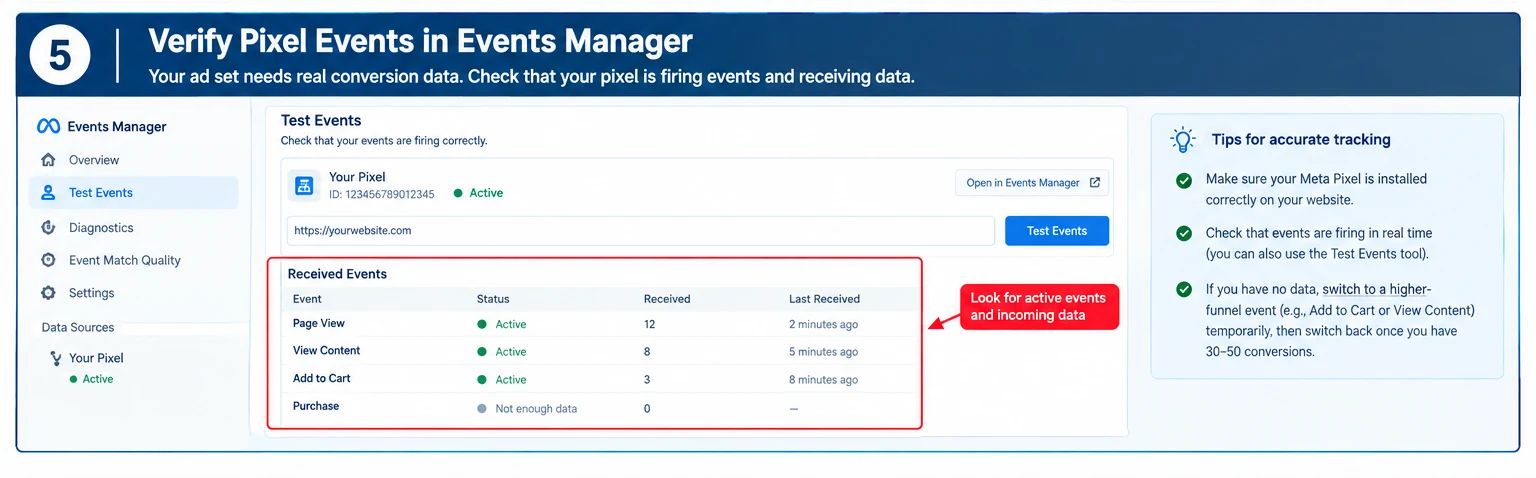
If your ad set optimizes for an end-funnel event (like 'Purchase' or 'Qualified Lead') that has zero recorded triggers, Meta's algorithm has no algorithmic profile to target and may choke delivery.
Action Checklist:
- 1Open Events Manager in a separate browser tab.
- 2Confirm your Meta Pixel / Conversions API shows Active with incoming events.
- 3If the pixel has zero historical data, temporarily switch your ad set optimization to a higher-funnel action (e.g., Add to Cart or View Content).
- 4Once the pixel records 30–50 conversions, switch back to your primary conversion goal.
LK Digital Pro Tip: Always implement Conversions API (CAPI) server-side alongside the browser Pixel. With Safari ITP, Firefox tracking protection, and ad blockers stripping browser cookies, CAPI ensures 100% signal delivery so Meta never starves of optimization data.
How Long Until Tracking & Delivery Restores?
Once these adjustments are applied, event verification and attribution reconnect according to these pacing benchmarks:
Meta's financial clearing service immediately lifts the account-wide auction freeze once payment or limit clearance registers.
The pacing algorithm recalculates clearing bids and enters current live auction clusters with open market rates.
The delivery system broadens the candidate pool and recalibrates opportunity scoring across active placements.
If your ad spend remains at $0.00 after 24 hours of completing all these steps, duplicate the campaign inside Ads Manager and publish it fresh. This clears stuck system caches and orphan auction threads in Meta's distributed delivery architecture.
Need a professional to handle this?
If your campaigns are still stuck at $0 spend after following this guide, there might be a deeper structural issue with your funnel or tracking. You don't have to waste time guessing.
Reach out to us at zidan@lkdigital.uk to have the LK Digital team diagnose and solve the problem for you.