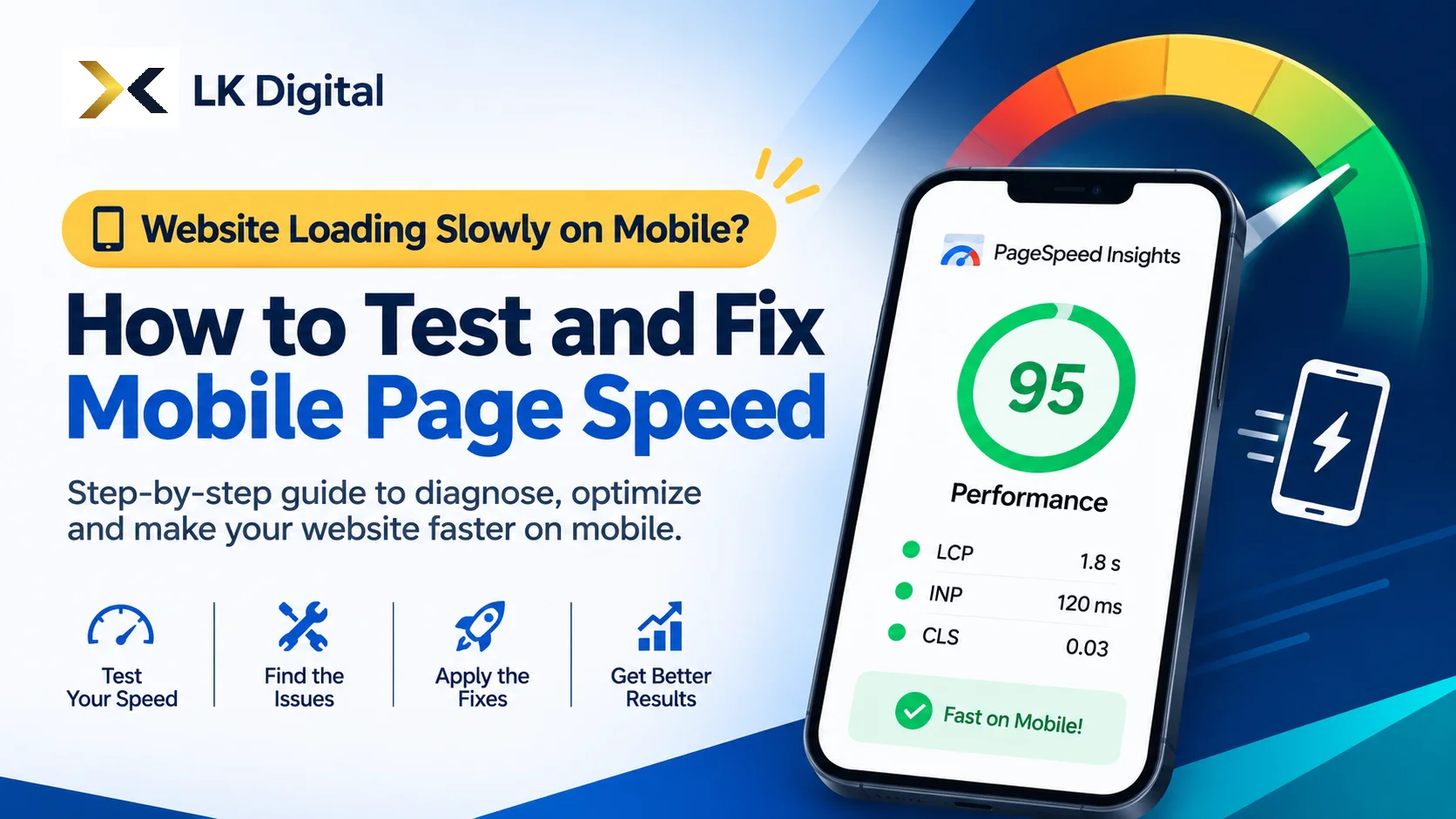
You open your website on your desktop and it looks fast. Then a customer messages you saying the page takes forever on their phone, or you check Google Analytics and see mobile visitors leaving after viewing only one page. Your ad clicks are paid for, your traffic numbers look healthy, but mobile sales, calls, and form submissions are far lower than desktop.
Mobile devices operate under harsher constraints: slower processors, weaker and less stable cellular connections, and far smaller memory than the laptop you build and test on. A page that feels instant on office Wi-Fi can easily take 8 seconds or more on a mid-range phone over 4G.
When a mobile page is slow, the culprit is rarely a mystery. It typically boils down to oversized images, render-blocking CSS and JavaScript, bloated third-party tags, sluggish server response times, or destabilizing layout shifts. Follow this five-step engineering framework to measure real-user speed, isolate technical bottlenecks, and accelerate your mobile experience.
“Lost sales, wasted ad spend, damaged search rankings, and eroded customer trust. Google's research confirms over 53% of mobile visits are abandoned if a page takes longer than 3 seconds to load. When paid traffic from TikTok, Meta, or Google lands on a sluggish page, visitors bounce before conversion tags or forms can even fire—inflating your cost per acquisition and pushing your rankings below faster competitors.”
Clear the Basics: Diagnostic Checklist
Before altering any tags, rule out account-level and environment roadblocks. Use this fast reference table to pinpoint where the bottleneck lives:
| Level | Failure Point | What to Look For | Immediate Action |
|---|---|---|---|
| PageSpeed Insights | Poor Core Web Vitals Baseline | Mobile LCP above 2.5s, INP above 200ms, or CLS above 0.1 in Google PageSpeed Insights | Work through the top Opportunities and Diagnostics listed in the mobile PSI report |
| Images | Oversized Uncompressed Media | Large camera/design files (2–5 MB) or 'Properly size images' warnings | Convert images to modern WebP/AVIF format, resize to display dimensions, and lazy-load below the fold |
| Third-Party Scripts | Tag & Widget Script Bloat | Excessive non-essential external requests in the Chrome DevTools Network tab | Prune unused tracking tools, and delay retained marketing tags to Window Loaded via GTM |
| Render-Blocking Code | Parsing Delays & Jumpy Layouts | Blank white screen for several seconds or 'Eliminate render-blocking resources' flags | Minify CSS/JS, add defer attributes, optimize fonts with font-display: swap, and lock image dimensions |
| Server Response | Slow Time to First Byte (TTFB) | Slow initial byte response or 'Reduce initial server response time' exceeding 600ms | Deploy page-level caching, integrate Cloudflare CDN, enable Brotli compression, or upgrade server hosting |
2. Step-by-Step Fixes
Follow these sequential troubleshooting steps to identify the technical break and restore accurate tracking data.
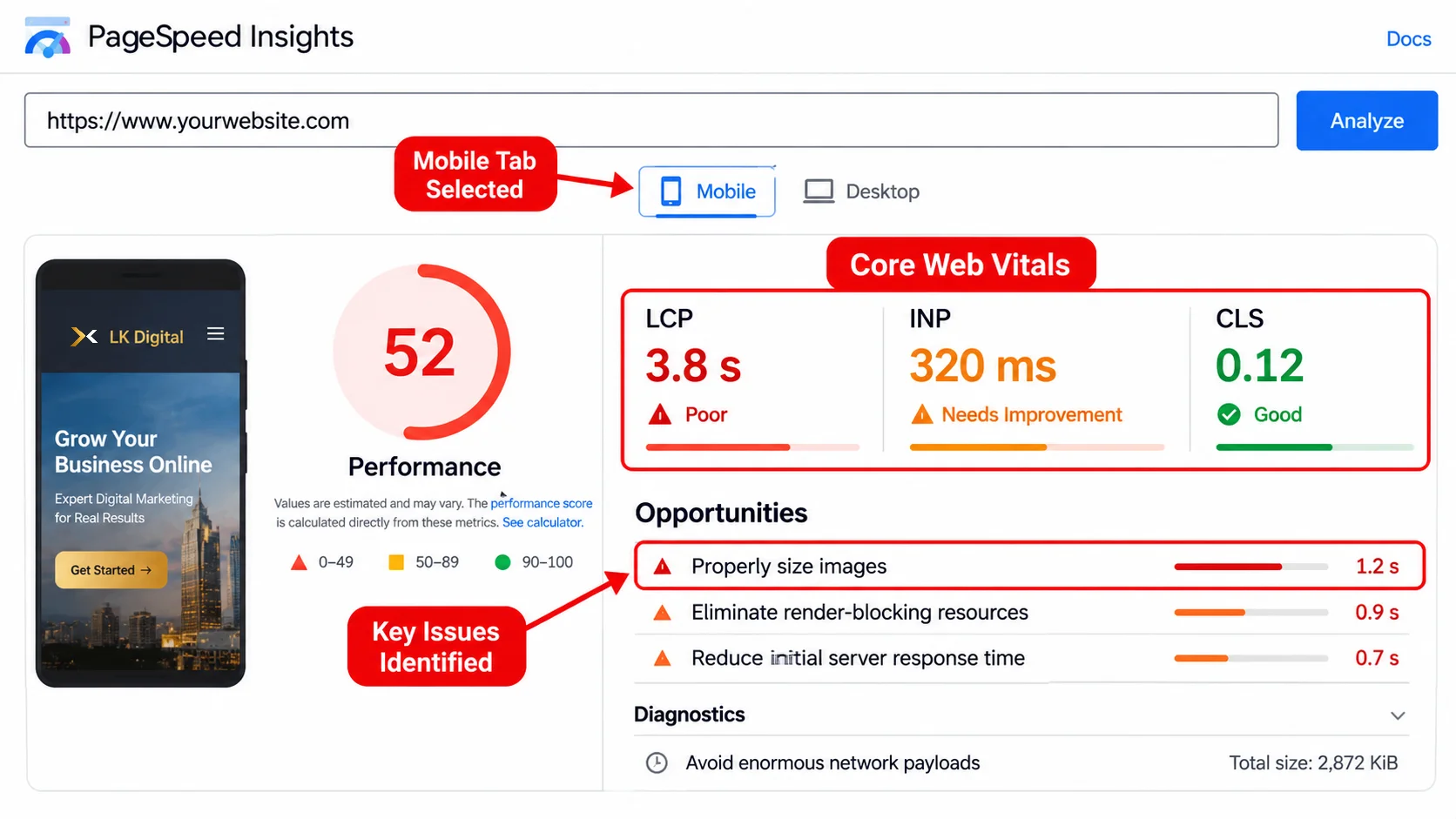
Measure Your Real Mobile Speed with PageSpeed Insights
Do not rely on gut feelings or fast office Wi-Fi. Obtain an objective baseline score and isolate the exact technical bottlenecks Google detects before touching any code.
Action Checklist:
- 1Open Google PageSpeed Insights (pagespeed.web.dev) and paste in your highest-priority URL (homepage, top landing page, or product page).
- 2Click Analyze and toggle to the Mobile tab rather than the default desktop view.
- 3Audit the Core Web Vitals assessment section and note your three key real-user metrics: LCP (Largest Contentful Paint ≤ 2.5s), INP (Interaction to Next Paint ≤ 200ms), and CLS (Cumulative Layout Shift ≤ 0.1).
- 4Scroll down to Opportunities and Diagnostics to inspect Google's prioritized recommendations (such as 'Properly size images' or 'Eliminate render-blocking resources').
- 5Verification: Capture a saved screenshot of your mobile LCP, INP, and CLS scores alongside your top three diagnostic issues to serve as your authoritative 'before' benchmark.
LK Digital Pro Tip: Always audit multiple key templates across your site (e.g., homepage, collection/category page, product page, and lead form). A lightweight homepage often hides severe script bloat on product and checkout landing pages.
Compress and Resize Your Images
Unoptimized imagery is the single most common cause of mobile page bloat—and the fastest to remediate.
Action Checklist:
- 1In your PageSpeed Insights report, expand 'Properly size images' and 'Serve images in next-gen formats' to identify which image assets consume the highest payload weight.
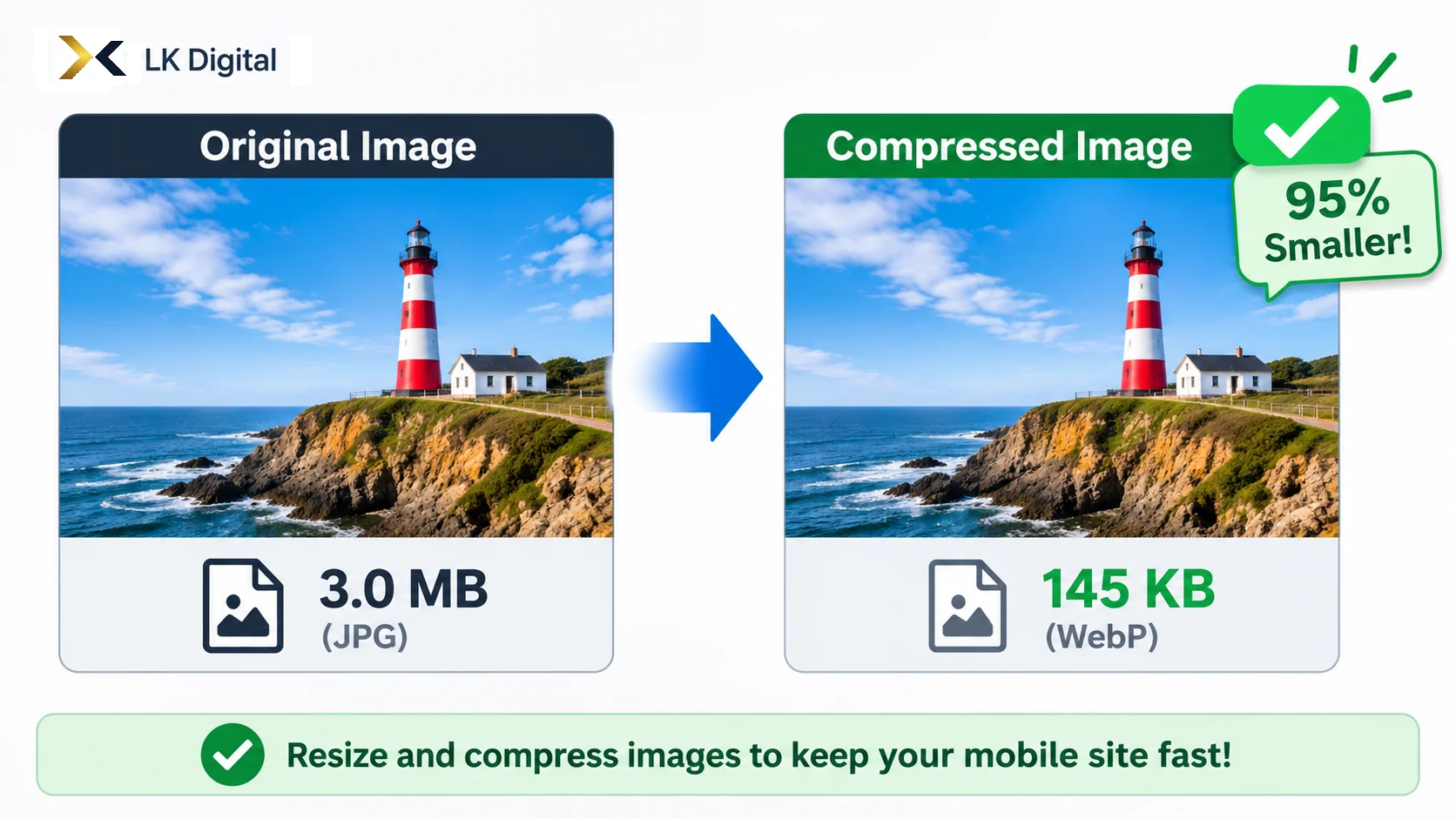
- 2Convert raster images (JPEG/PNG) to modern WebP or AVIF formats using tools like Squoosh, sharp, or CMS automation to achieve 70–85% file size reductions without visible quality loss.
- 3Resize each image to its physical maximum rendered mobile viewport width. Serving a 4,000px camera photo into a 390px phone container wastes mobile cellular bandwidth.
- 4Apply native loading="lazy" attributes to all non-critical images located below the fold so they only fetch as the user scrolls into view.
- 5Crucial: Never lazy-load your primary above-the-fold hero image. Instead, assign it fetchpriority="high" (and preload if applicable) so the browser prioritizes it immediately.
- 6The Fix: Aim for secondary content images under 150 KB and primary hero banners under 250 KB without perceptual quality loss.
- 7Verification: Re-test your URL in PageSpeed Insights. Image optimization warnings should shrink or disappear completely, yielding an immediate drop in LCP.
LK Digital Pro Tip: Implement responsive srcset attributes with proper sizes descriptors. This ensures high-DPI desktop screens receive crisp resolution while mobile users download appropriately sized lightweight files.
Remove or Delay Third-Party Scripts
Every chat widget, tracking pixel, heatmap recorder, and social feed competes directly with your core content for the mobile device's constrained CPU cycles.
Action Checklist:
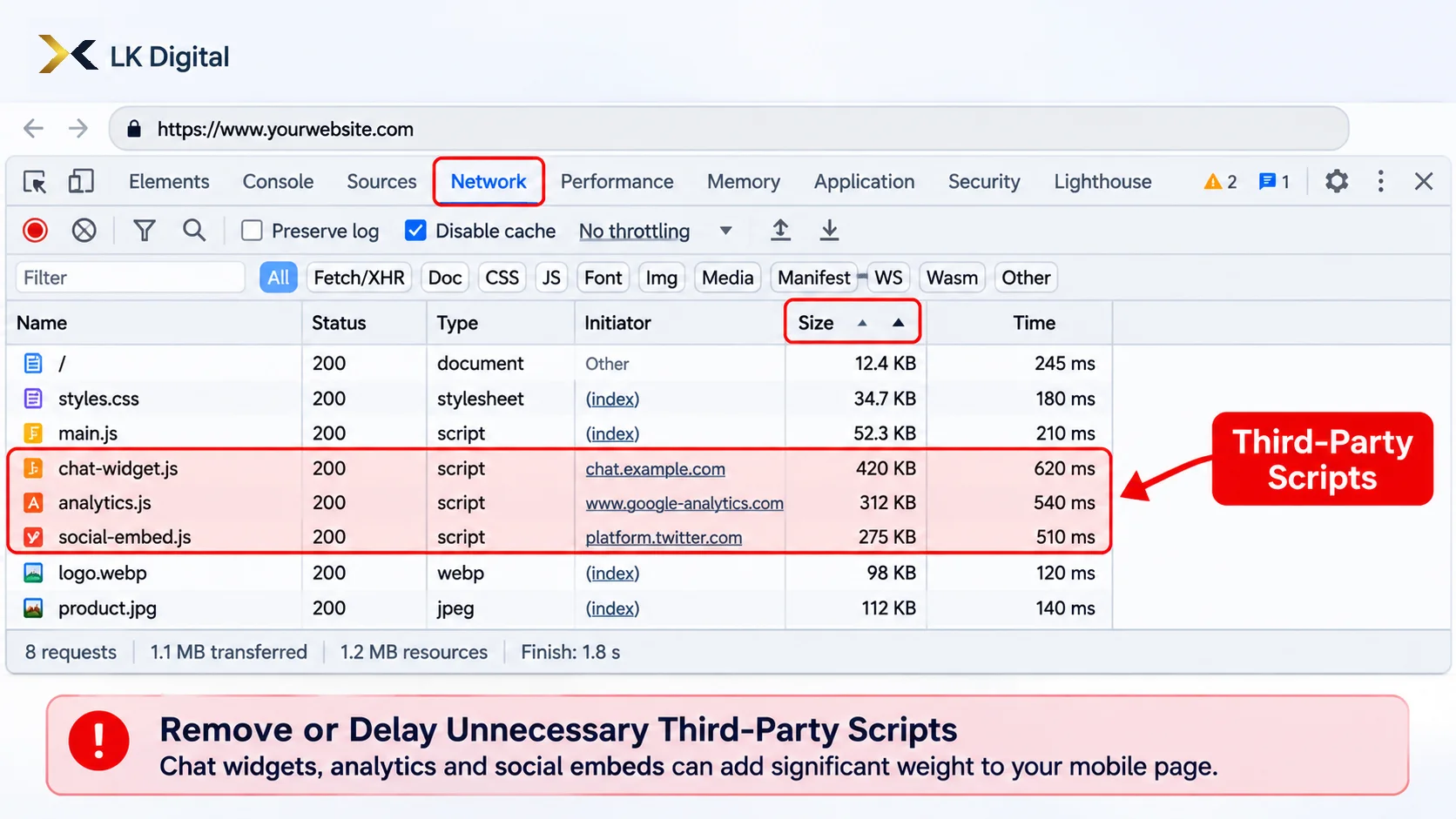
- 1Open Chrome DevTools (right-click anywhere on the page, select Inspect), navigate to the Network tab, filter by 'JS', and reload the page with caching disabled.
- 2Sort the request table by Size and Time to pinpoint external domains (chat tools, social embeds, tracking pixels, heatmap recorders).
- 3Conduct a tag audit: Permanently eliminate deprecated heatmap software, duplicate tracking pixels, unused survey widgets, and abandoned marketing plugins.
- 4For critical marketing pixels (TikTok, Meta, Google Ads), defer non-essential tags until after interactive paint. In Google Tag Manager, move non-critical tracking from Page View triggers to Window Loaded or custom scroll triggers.
- 5Replace heavy interactive embeds (embedded YouTube videos, Google Maps iframes, Instagram feeds) with static facade preview cards that only instantiate heavy third-party iframes upon explicit user tap.
- 6The Fix: Retain only scripts that directly power revenue, conversions, or fundamental operations—and defer everything else.
- 7Verification: Re-inspect the DevTools Network waterfall to confirm reduced total network requests and a shorter main-thread execution duration. Confirm 'Reduce the impact of third-party code' warnings shrink in PageSpeed Insights.
LK Digital Pro Tip: Implement a Tag Governance policy. Marketing tags often accumulate over years as team members test tools and forget to remove them. Schedule quarterly GTM reviews to decommission orphaned tags.
Fix Render-Blocking Code, Fonts and Layout Shifts
If a mobile page remains blank for several seconds despite image optimization, the browser's rendering engine is blocked waiting on external CSS, synchronous JavaScript, or custom web fonts.
Action Checklist:
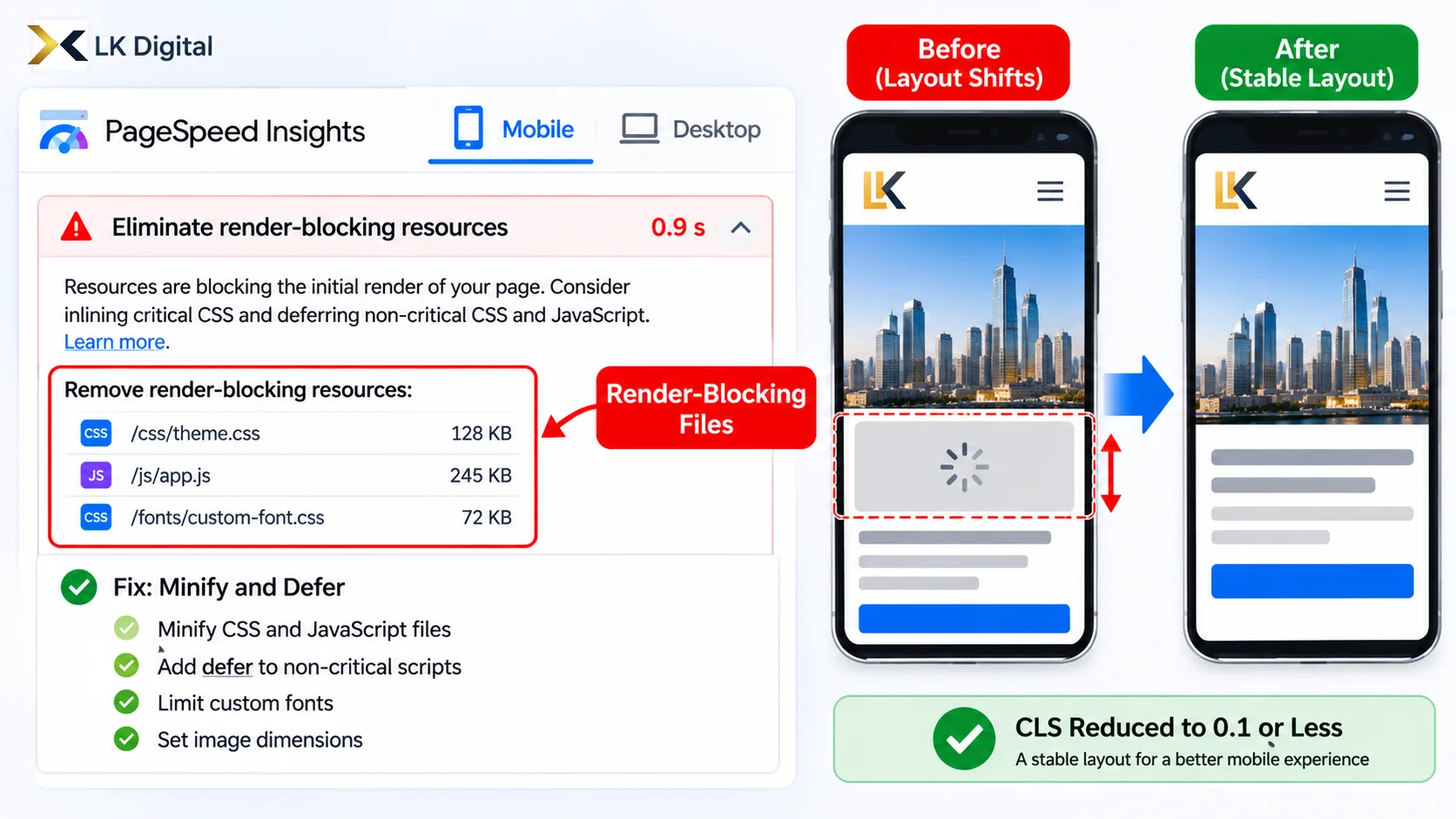
- 1In PageSpeed Insights, expand 'Eliminate render-blocking resources' to identify blocking CSS stylesheets and head scripts.
- 2Minify all CSS and JavaScript bundles. Add defer or async attributes to non-critical script tags so DOM construction proceeds uninterrupted.
- 3Strip unused code: Remove unnecessary CSS frameworks, purge unused page-builder components, and disable unused theme functionality.
- 4Streamline web fonts: Restrict typography to a maximum of two font families and two weight variants. Apply font-display: swap to ensure legible fallback typography renders instantly while web fonts download.
- 5Eliminate layout shifts: Define explicit width and height attributes (or CSS aspect-ratio properties) on all image tags, video containers, and ad slots. This reserves physical space and prevents jarring visual jumps as assets finish loading.
- 6The Fix: Deliver critical CSS inline for above-the-fold content, defer secondary stylesheets, and lock layout dimensions to eliminate Cumulative Layout Shift (CLS).
- 7Verification: Verify that render-blocking flags disappear in PageSpeed Insights, and verify your mobile CLS metric stays strictly at or below 0.1.
LK Digital Pro Tip: Preload critical web fonts using <link rel="preload" as="font" type="font/woff2" crossorigin>. This fetches critical typography early in the waterfall, preventing invisible text (FOIT) without delaying the initial layout.
Speed Up the Server with Caching, a CDN and Better Hosting
If your hosting server requires hundreds of milliseconds just to generate the initial HTML response, no amount of client-side tweaking can make the mobile experience feel fast.
Action Checklist:
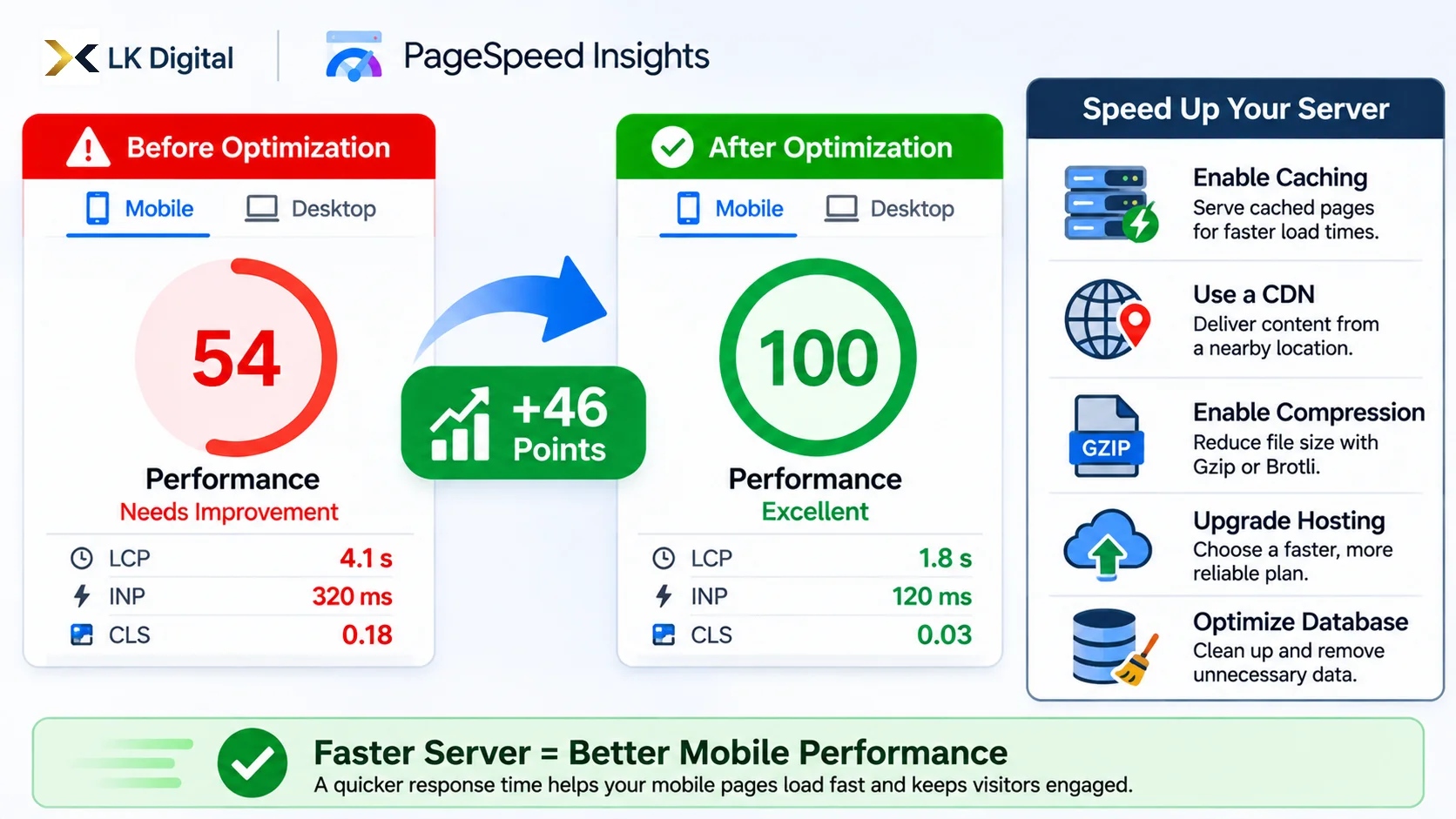
- 1In PageSpeed Insights, check 'Reduce initial server response time' (Time to First Byte / TTFB). A response exceeding 600 milliseconds is a clear indicator of server-side latency.
- 2Enable full page caching: In WordPress, deploy a high-performance caching layer (such as Redis object cache or LiteSpeed/WP Rocket). For custom stacks, implement edge caching via Vercel, Cloudflare, or Nginx microcaching.
- 3Deploy a Content Delivery Network (CDN) such as Cloudflare or Fastly to distribute static assets across edge servers located physically close to your mobile visitors.
- 4Verify server protocols and compression: Confirm that modern Brotli compression (or Gzip) is active, alongside HTTP/2 or HTTP/3 multiplexing for simultaneous parallel downloads.
- 5Upgrade infrastructure: If TTFB remains sluggish after caching, migrate from crowded shared hosting to dedicated cloud VPS or managed cloud platforms, and clean up database bloat (transients, revisions, spam).
- 6The Fix: Cache static HTML at edge nodes, deliver media from localized CDNs, and ensure your origin server responds in under 200–400ms.
- 7Verification: Run PageSpeed Insights again and test the URL directly on a physical phone connected over a live cellular 4G network. Confirm your mobile LCP achieves ≤ 2.5s and the page navigates with instantaneous response.
LK Digital Pro Tip: Always perform final testing on a real mobile device over a 4G connection. Synthetic lab tests in DevTools cannot fully emulate real cellular packet loss, CPU thermal throttling, or mobile browser memory management.
How Long Until Tracking & Delivery Restores?
Once these adjustments are applied, event verification and attribution reconnect according to these pacing benchmarks:
Immediate bandwidth reduction across your highest-traffic landing pages once uncompressed camera photos are converted to WebP and sized to 390px viewports.
Immediate reduction in main-thread CPU blocking time once orphaned marketing tags are removed and non-essential tools deferred to Window Loaded.
Sub-200ms TTFB global delivery across all mobile edge nodes once DNS propagation and cache warming complete.
Never evaluate mobile page speed on high-speed office fiber Wi-Fi. Always throttle your Chrome DevTools connection to 'Fast 4G' with 4x CPU throttling, or test on a physical smartphone over cellular data. If your page takes longer than 3 seconds to become interactive, over half your prospective customers will abandon the tab before reading your headline.
Need a Professional to Accelerate Your Mobile Site?
If your website is still slow on mobile after following this guide, there may be deeper structural issues in your theme architecture, server stack, or tag orchestration. Reach out to the LK Digital engineering team to diagnose and eliminate speed bottlenecks for you.
Reach out to us at zidan@lkdigital.uk to have the LK Digital team diagnose and solve the problem for you.