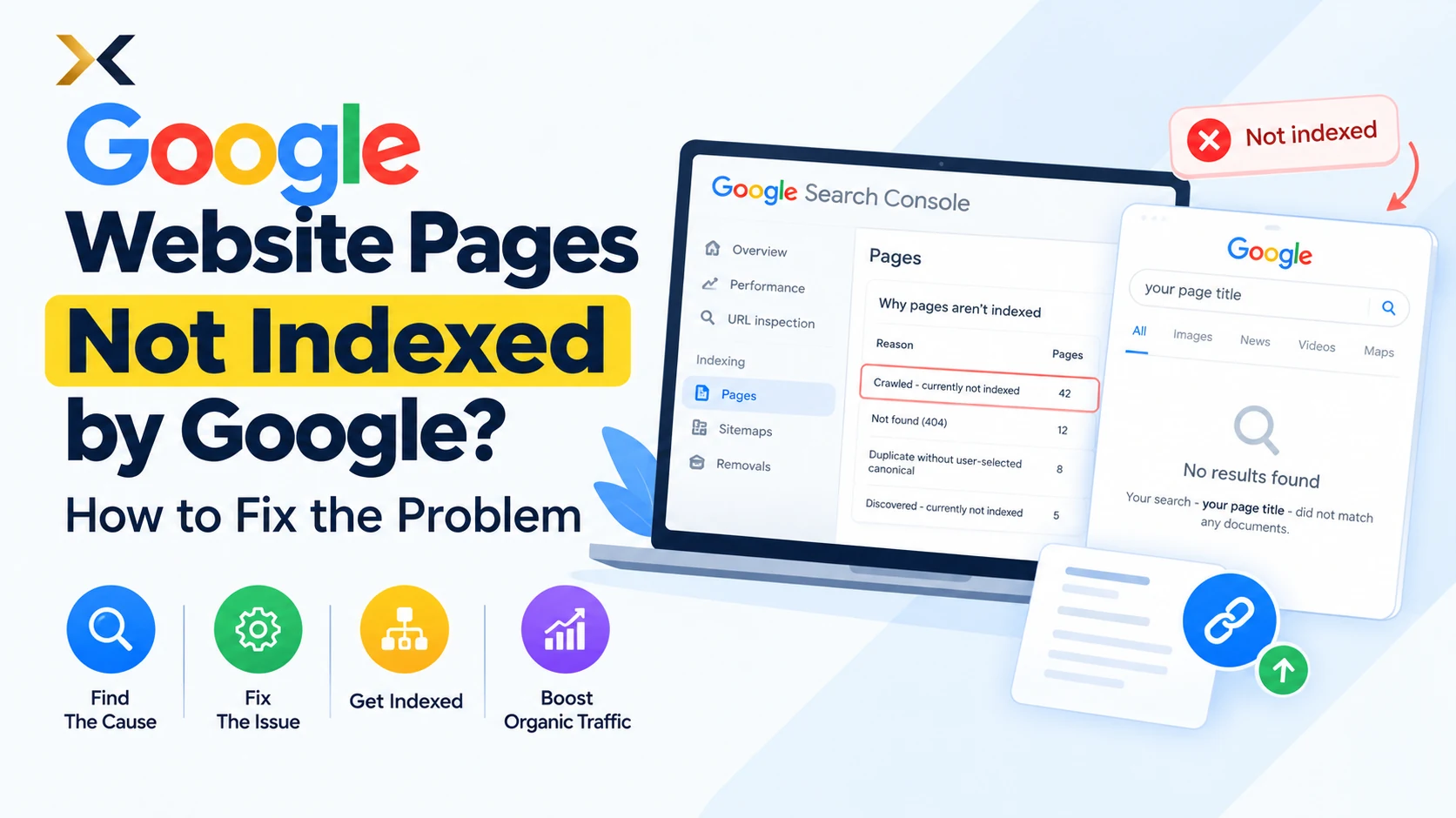
You spend hours writing and designing a new blog post, service page, or product catalog, hit Publish, and submit it to Google. Days or weeks pass, but when you search for your exact page title or URL on Google, nothing shows up.
Before Google can rank a page, it must discover it, crawl it, render its contents, and deem it worthy of storage in its massive search index. Your page remains unindexed typically because of direct blocking signals, crawl budget and discovery gaps, thin or duplicate content filters ('Crawled - currently not indexed'), or client-side JavaScript rendering issues.
The business impact is severe: zero organic discovery means your page doesn't exist to search engines, delivering zero organic impressions and zero free traffic. Production costs are wasted with no return on investment, and your domain's topical authority growth is delayed. Here is the step-by-step diagnostic framework to find the exact bottleneck and force successful indexing.
“A page that isn't indexed doesn't exist to search engines. You receive zero organic impressions, zero organic clicks, and zero free traffic. Every penny and hour spent drafting content, optimizing graphics, and developing pages delivers zero return on investment.”
Clear the Basics: Diagnostic Checklist
Before altering any tags, rule out account-level and environment roadblocks. Use this fast reference table to pinpoint where the bottleneck lives:
| Level | Failure Point | What to Look For | Immediate Action |
|---|---|---|---|
| URL Inspection | URL is not on Google in GSC | Status reads 'URL is not on Google'; crawl status either never visited or rejected | Run 'Test Live URL' and click 'Request Indexing' in Google Search Console |
| Robots Meta | Accidental noindex Tag in Header | <meta name="robots" content="noindex"> tag present in HTML source code | Uncheck 'Discourage search engines' in WordPress Reading or switch plugin to Index |
| Robots.txt | Disallow Rule Blocking Googlebot | Disallow: / or Disallow: /folder/ rules blocking Googlebot in /robots.txt | Remove matching Disallow directive and ensure Allow: / is declared in robots.txt |
| XML Sitemap | Sitemap Missing or Fetch Error | Status reads 'Couldn't fetch' or target page URL is missing from sitemap.xml | Resubmit valid sitemap.xml in GSC Sitemaps menu and verify URL presence |
| Quality Filter | Crawled - Currently Not Indexed | URL rejected by Google quality threshold; orphan page with zero internal links | Add 3–5 internal links from top-traffic pages and expand content with unique depth |
2. Step-by-Step Fixes
Follow these sequential troubleshooting steps to identify the technical break and restore accurate tracking data.
Inspect the Exact URL in Google Search Console
Do not guess why Google hasn't indexed a page. Google Search Console (GSC) tells you the exact technical verdict. Running a live test checks whether Googlebot can reach, parse, and render the page in real time, bypassing stale cache records.
Action Checklist:
- 1Log in to Google Search Console (search.google.com/search-console) and select your domain property.
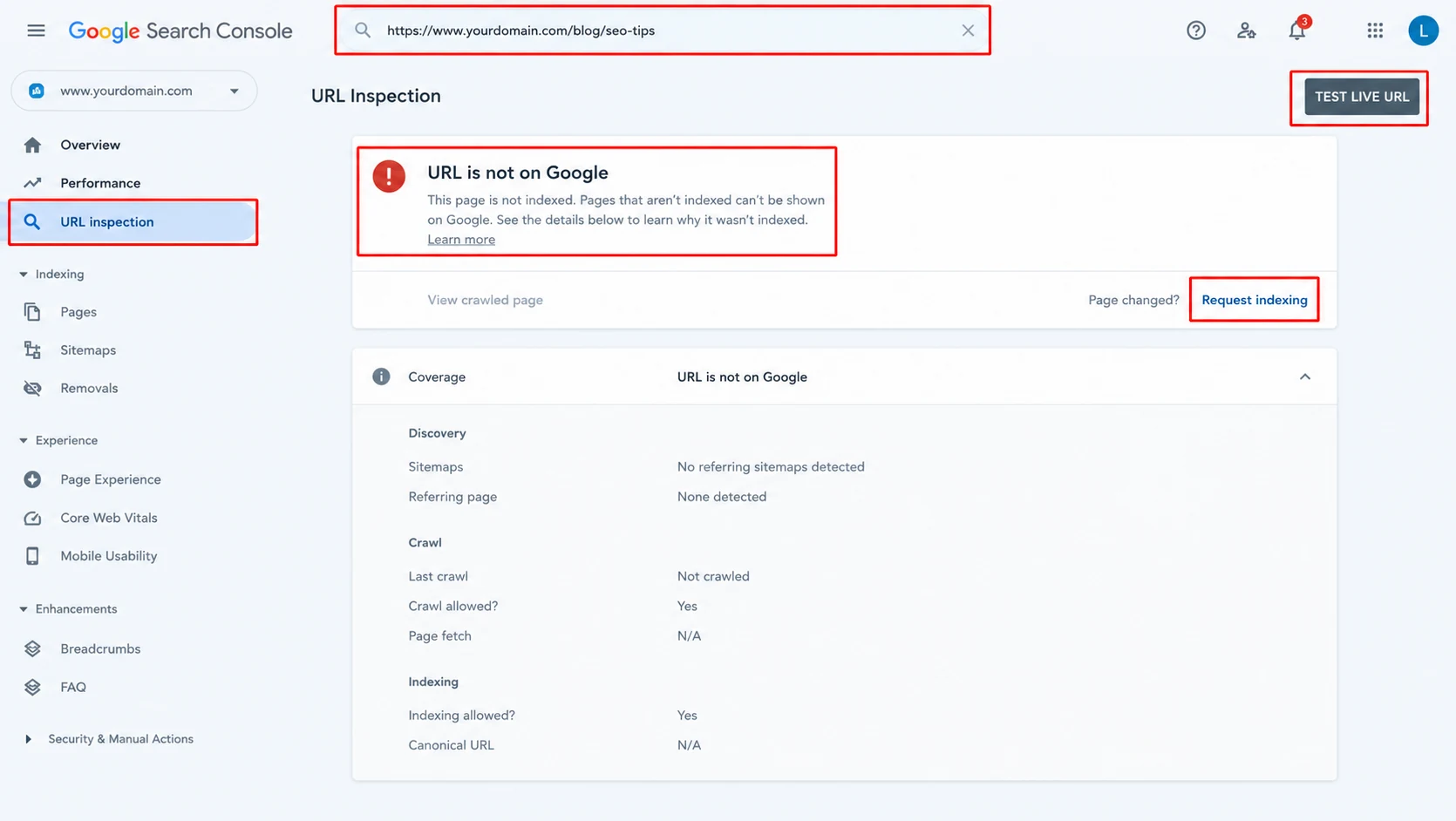
- 2Paste the full URL of the unindexed page into the top search bar ('Inspect any URL...') and press Enter.
- 3Read the primary status line: 'URL is not on Google' indicates Google has either never crawled it, or crawled it and rejected it; 'URL is on Google' means the page is indexed, but may simply be ranking too low on page 5+ for you to see.
- 4Click 'Test Live URL' in the top right. This tests whether Google can reach the page right now, bypassing cached data.
- 5If the live test succeeds with green checkmarks, click 'Request Indexing' to place the URL directly into Google's priority crawl queue.
LK Digital Pro Tip: Do not spam the 'Request Indexing' button repeatedly. Submitting a URL once places it into Googlebot's priority queue. Google typically re-crawls requested URLs within 24 to 72 hours. Subsequent submissions do not accelerate crawl frequency.
Check for Unintended noindex Tags
A single piece of bad code can instruct Googlebot to discard your page immediately after reading the header. A stray noindex directive instructs search crawlers to drop the URL from the index completely, even if the content is exceptional.
Action Checklist:
- 1Open the unindexed page in your web browser (Chrome, Safari, or Edge).
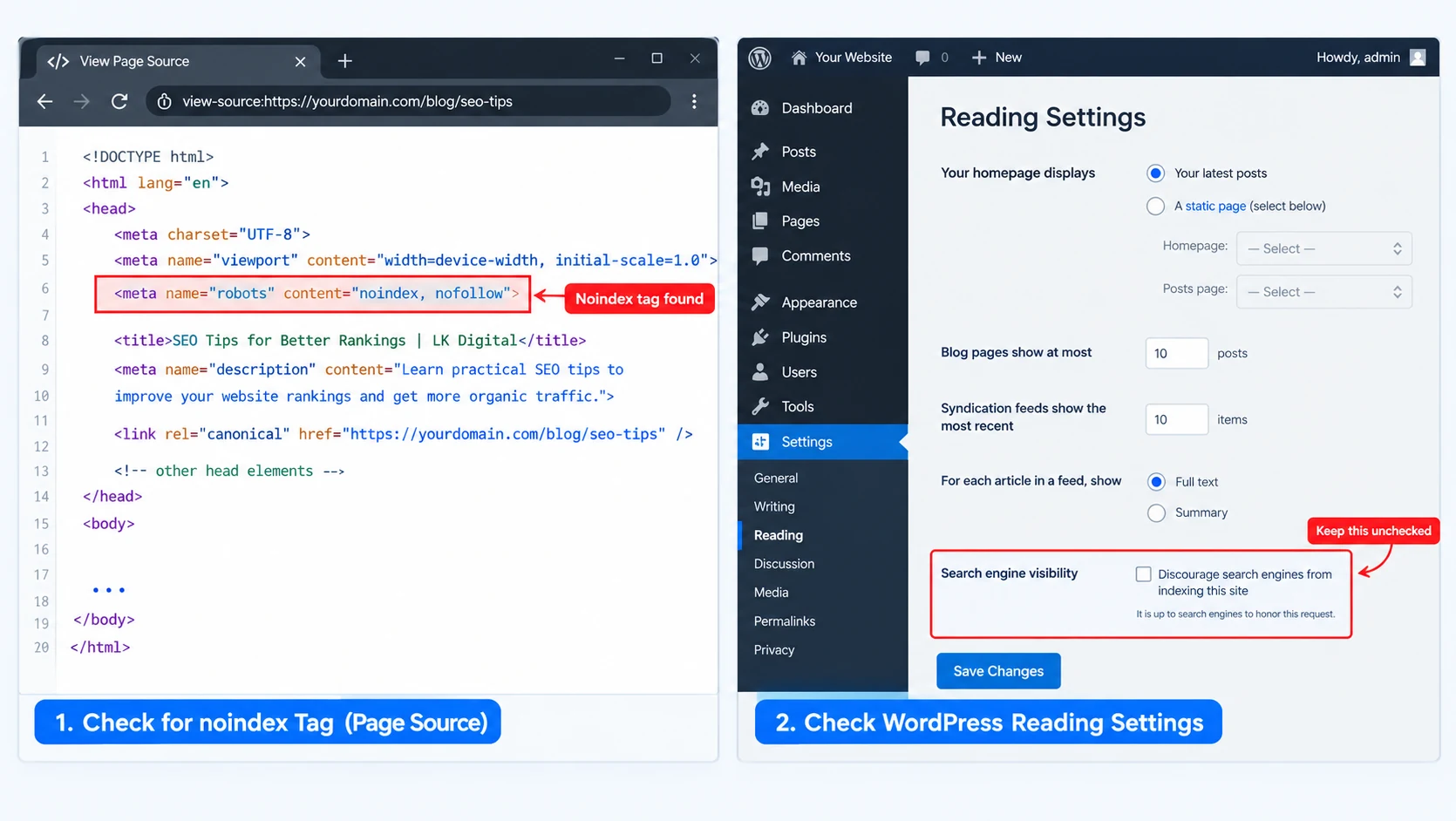
- 2Right-click anywhere on the page and select 'View Page Source' (or press Ctrl + U / Cmd + Option + U).
- 3Press Ctrl + F (or Cmd + F) and search for: noindex. Check if you see: <meta name="robots" content="noindex, nofollow">.
- 4The Fix in WordPress: Go to Settings > Reading and make sure the box next to 'Discourage search engines from indexing this site' is completely unchecked.
- 5The Fix in SEO Plugins (Yoast / Rank Math / SEOPress): Open the page editor, scroll to the SEO settings box, open the Advanced tab, and change the robots meta setting from Noindex to Index.
- 6The Fix in Custom Code: Remove the noindex directive from your HTML <head> section or HTTP response headers (X-Robots-Tag).
LK Digital Pro Tip: Watch out for staging site migrations! Developers frequently enable 'Discourage search engines from indexing this site' or set HTTP headers to 'X-Robots-Tag: noindex' during development, and inadvertently push those settings to the live production server.
Verify That robots.txt Isn't Blocking Googlebot
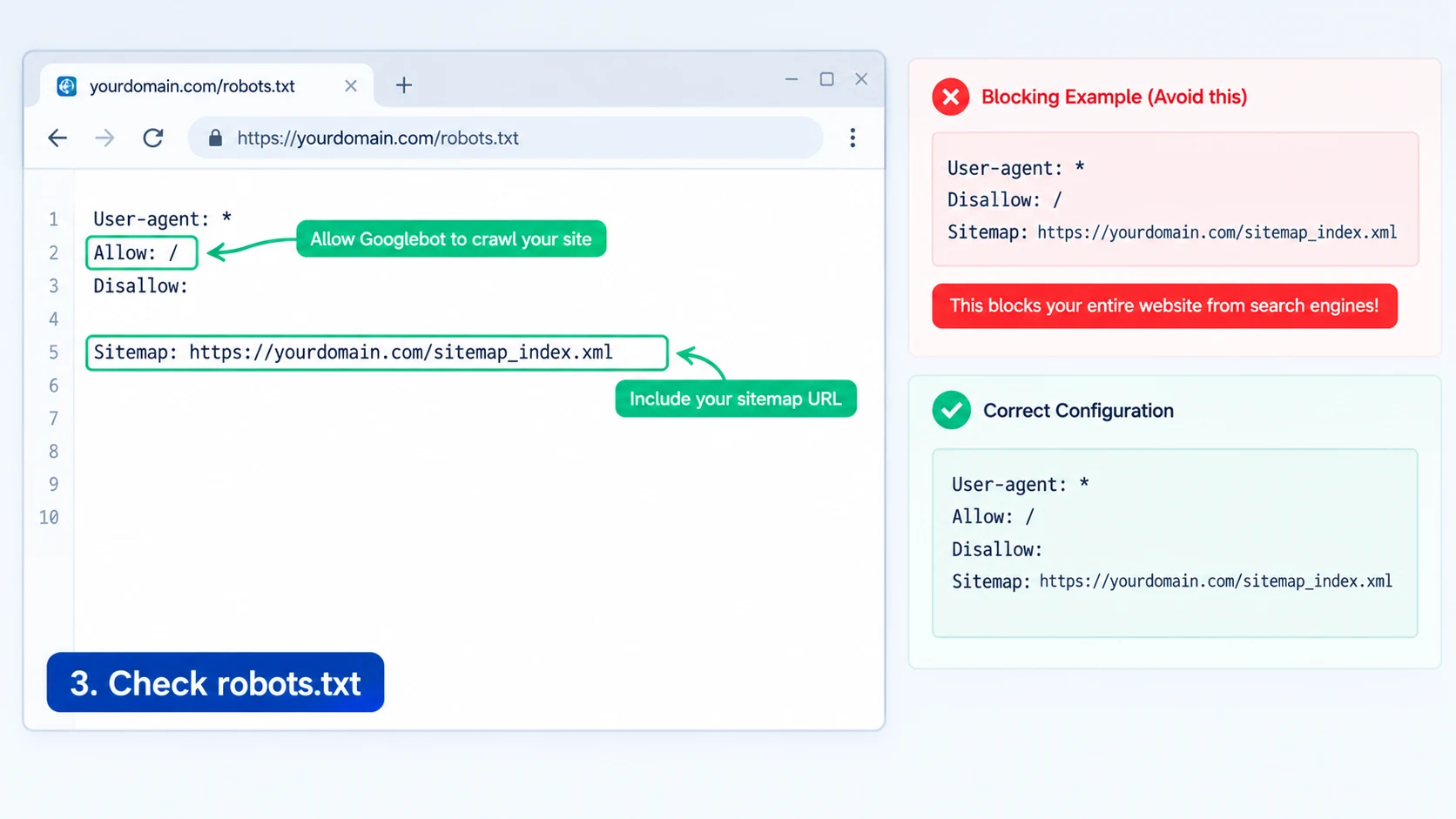
Your robots.txt file acts as a gatekeeper. If a rule disallows Googlebot from crawling your folder or root directory, Google won't index the page. Googlebot respects Disallow directives and halts crawling immediately.
Action Checklist:
- 1In your browser's address bar, visit: https://yourdomain.com/robots.txt.
- 2Review the file for restrictive rules such as: User-agent: * Disallow: / (this fatal rule blocks your entire website from every search engine!).
- 3Look for disallow lines matching your post's category or folder path (e.g., Disallow: /blog/ or Disallow: /services/).
- 4The Fix: Remove the matching Disallow line in your root robots.txt file via your hosting file manager (cPanel), FTP, or your SEO plugin's file editor.
- 5Ensure the file contains: User-agent: * Allow: / and references your sitemap: Sitemap: https://yourdomain.com/sitemap_index.xml (or sitemap.xml).
LK Digital Pro Tip: If a page was previously blocked by robots.txt, Google may still display an indexed URL with the snippet 'No information is available for this page' if external links point to it. Unblocking the URL in robots.txt allows Googlebot to crawl the actual page HTML and index full titles and snippets.
Submit Your XML Sitemap to Google Search Console
If Google doesn't know a URL exists, it cannot crawl it. An XML sitemap acts as a direct roadmap of all valid, canonical pages on your website. Submitting your sitemap directly guides Googlebot through your content architecture.
Action Checklist:
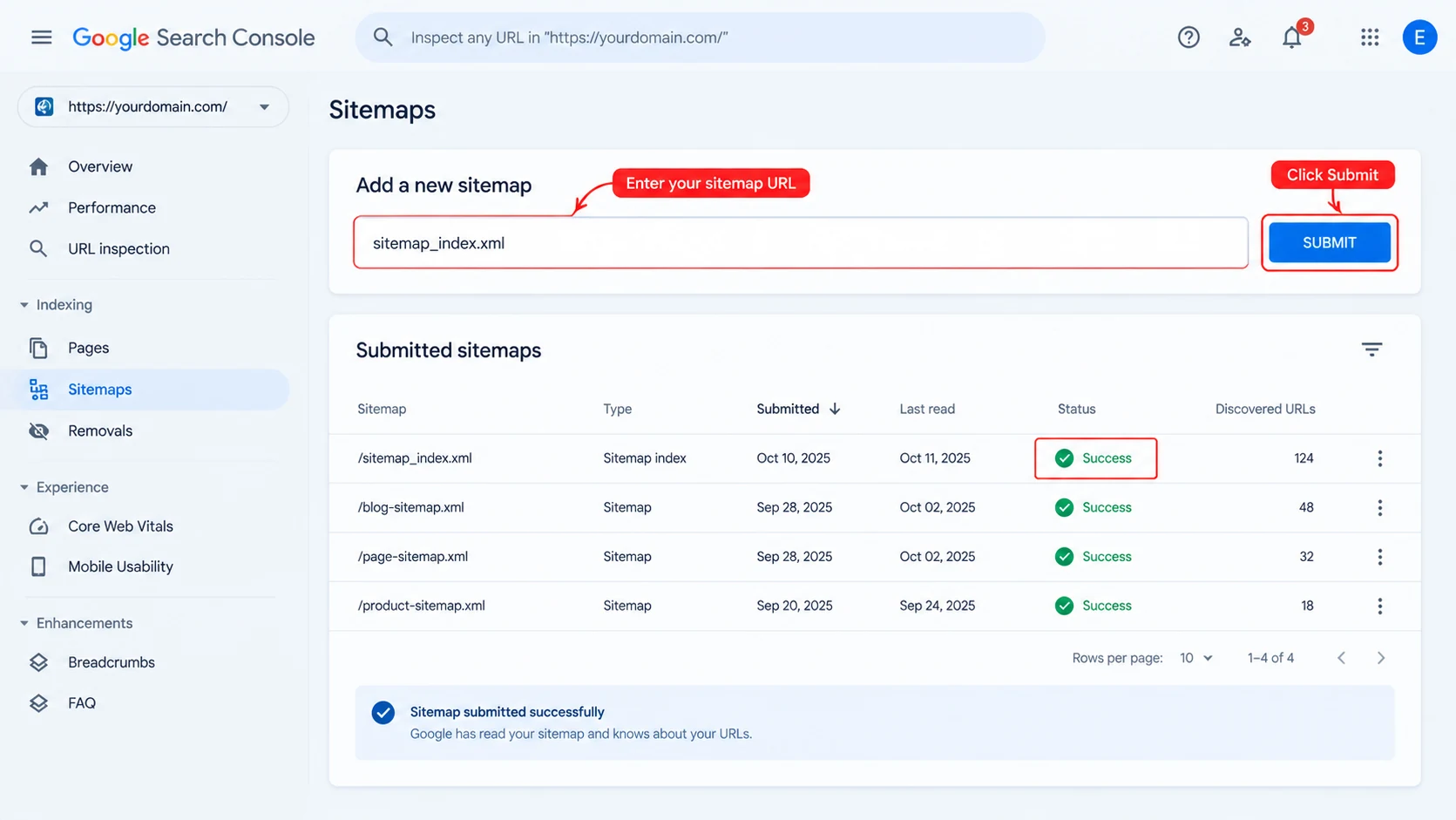
- 1In Google Search Console, click Sitemaps in the left navigation sidebar (under the 'Indexing' section).
- 2Under 'Add a new sitemap', enter your sitemap URL path (usually sitemap_index.xml or sitemap.xml) and click Submit.
- 3Check the status in the table below: 'Success' (Green) means Google has read your sitemap and knows where your URLs live; 'Couldn't fetch' or 'Error' indicates your sitemap URL is broken, returning a 404, or blocked by security plugins.
- 4Open your sitemap in a new browser tab and search (Ctrl + F) for your missing page URL to verify that your CMS actually added it to the file.
LK Digital Pro Tip: Ensure your XML sitemap only includes 200 OK canonical URLs. If your sitemap contains 301 redirects, 404 errors, or pages with noindex tags, Google will treat the entire sitemap file with lower priority and reduce crawl frequency.
Fix 'Crawled - Currently Not Indexed' with Internal Links & Content Depth
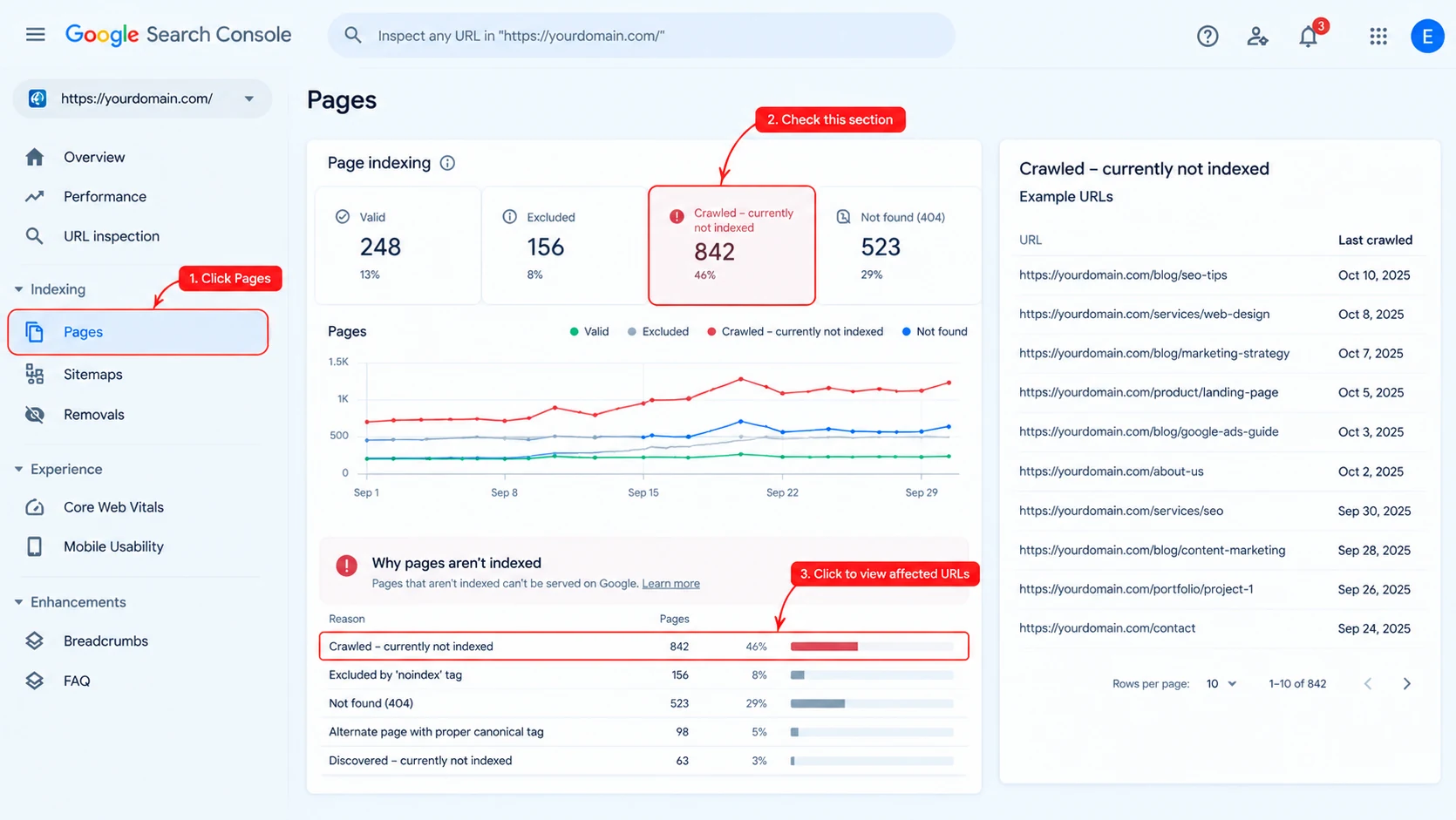
If GSC's Page Indexing report lists your page under 'Crawled - currently not indexed', this is a content quality and internal architecture signal, not a technical bug. Google visited the page, evaluated the content, and decided it didn't meet the threshold for inclusion.
Action Checklist:
- 1In Google Search Console, click Pages (under 'Indexing') and scroll down to the table labeled 'Why pages aren't indexed'.
- 2Click on 'Crawled - currently not indexed' to view the list of rejected URLs.
- 3The Fix (Internal Linking): An unlinked page looks unimportant to Google. Go to 3 to 5 of your existing, already-indexed, high-traffic pages or blog posts, and add a contextual anchor text link pointing directly to this new page.
- 4The Fix (Content Upgrade): Check the page itself. If it has fewer than 300 words, repeats boilerplate text found on other pages, or offers no original insight, rewrite and expand it with unique value, real examples, and clear answers.
- 5Once updated, return to URL Inspection, click Test Live URL, and click Request Indexing.
LK Digital Pro Tip: Orphan pages (pages with 0 internal links) are the #1 cause of 'Crawled - currently not indexed'. Google views internal links as internal votes of confidence. If your own navigation and articles don't link to a page, Google assumes users won't find value in it either.
How Long Until Tracking & Delivery Restores?
Once these adjustments are applied, event verification and attribution reconnect according to these pacing benchmarks:
Priority crawl requests via Google Search Console typically prompt Googlebot to revisit the URL and update status within 1 to 3 days.
Removing noindex tags and opening robots.txt allows Googlebot to re-evaluate headers on subsequent crawl passes and clear indexing blocks.
Submitting an updated XML sitemap guides Googlebot through newly published pages and updates your site's overall indexing graph.
Adding contextual internal links and deepening content value triggers quality re-evaluations, converting 'Crawled - not indexed' into indexed results.
If you have implemented all 5 fixes—verified zero noindex tags, opened robots.txt, submitted a valid XML sitemap, added 5 contextual internal links, and requested indexing—and the page remains unindexed after 14 days, test the search operator: 'site:yourdomain.com/exact-url'. If it still returns no results, your site may have an algorithmic sitewide quality threshold issue or severe crawl budget exhaustion requiring a deep technical SEO audit.
Need a professional to handle this?
If your website pages still aren't getting indexed by Google after following this guide, there might be a deeper structural issue with your funnel or tracking. You don't have to waste time guessing.
Reach out to us at zidan@lkdigital.uk to have the LK Digital team diagnose and solve the problem for you.