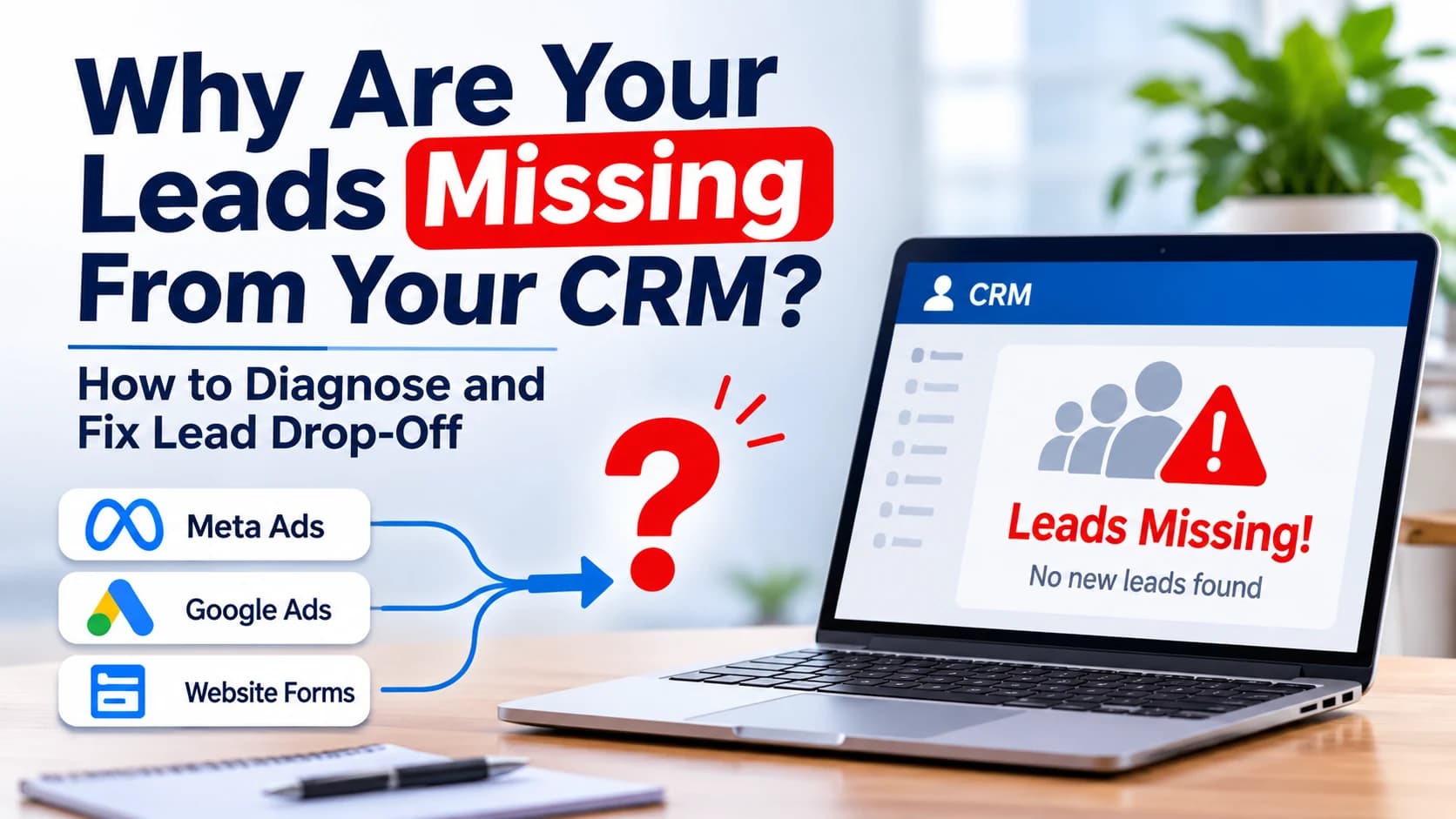
Your marketing campaigns are actively running. Meta Ads Manager or Google Ads reports 25 new form submissions, and your landing page analytics confirm completed conversions. But when your sales team opens HubSpot, Salesforce, Zoho, or your internal CRM to follow up, the leads simply aren't there.
Moving a lead from an ad platform or website form into a CRM requires a multi-step data relay. A single break anywhere along that relay causes submissions to drop silently without notifying you. This typically happens when OAuth tokens expire, form inputs conflict with strict CRM field validation, automated spam honeypots quarantine real prospects, or lead assignment rules misroute contacts away from sales dashboards.
The business cost is ruthless: reaching out to a lead within five minutes makes your sales team 21 times more likely to qualify them compared to waiting 30 minutes. Missing leads result in lost revenue, friction between sales and marketing teams, and permanent ad budget waste. Follow this sequential five-step troubleshooting guide to pinpoint exactly where your data pipeline is breaking and restore automated lead ingestion.
“The speed-to-lead rule is ruthless: reaching out to a lead within five minutes makes you 21 times more likely to qualify them than waiting 30 minutes. Missing leads mean lost sales opportunities, friction between sales and marketing, and permanent loss of ad spend.”
Clear the Basics: Diagnostic Checklist
Before altering any tags, rule out account-level and environment roadblocks. Use this fast reference table to pinpoint where the bottleneck lives:
| Level | Failure Point | What to Look For | Immediate Action |
|---|---|---|---|
| Origin Platform | Missing from Meta Lead Center or Form Database | Meta Instant Forms download is empty, or WordPress form entries log shows zero rows | Fix broken submit button, resolve JavaScript errors, or reconnect ad campaign lead form |
| Automation Bridge | 401 Unauthorized or 400 Bad Request in Middleware | Halted / Errored status tags in Zapier Zap History or Make Scenario execution logs | Reconnect API/OAuth tokens, correct payload keys, and replay failed task executions |
| Field Mapping | Mandatory CRM Property Missing or Format Mismatch | Single full-name sent to split first/last fields, or dropdown string mismatch rejected by CRM | Provide required defaults, split full name strings, and match dropdown options character-for-character |
| Spam Defense | Submissions Trapped in Quarantine or Bot Filters | Leads stored in CRM Spam / Non-Marketing view; reCAPTCHA threshold > 0.7 discarding real leads | Calibrate CAPTCHA threshold to 0.5, test honeypot fields, and whitelist test IPs |
| Visibility & Routing | Visible to Admin but Hidden From Sales Reps | Contact appears in global CRM search but is missing from sales reps' filtered pipeline views | Configure automated round-robin lead owner assignment and adjust team view filters |
2. Step-by-Step Fixes
Follow these sequential troubleshooting steps to identify the technical break and restore accurate tracking data.
Check the Native Platform Lead Center / Form Submissions First
Before altering any CRM settings or automation workflows, verify whether the lead data actually exists on the originating platform. If the submission never registered at the source, no middleware or CRM integration can save it.
Action Checklist:
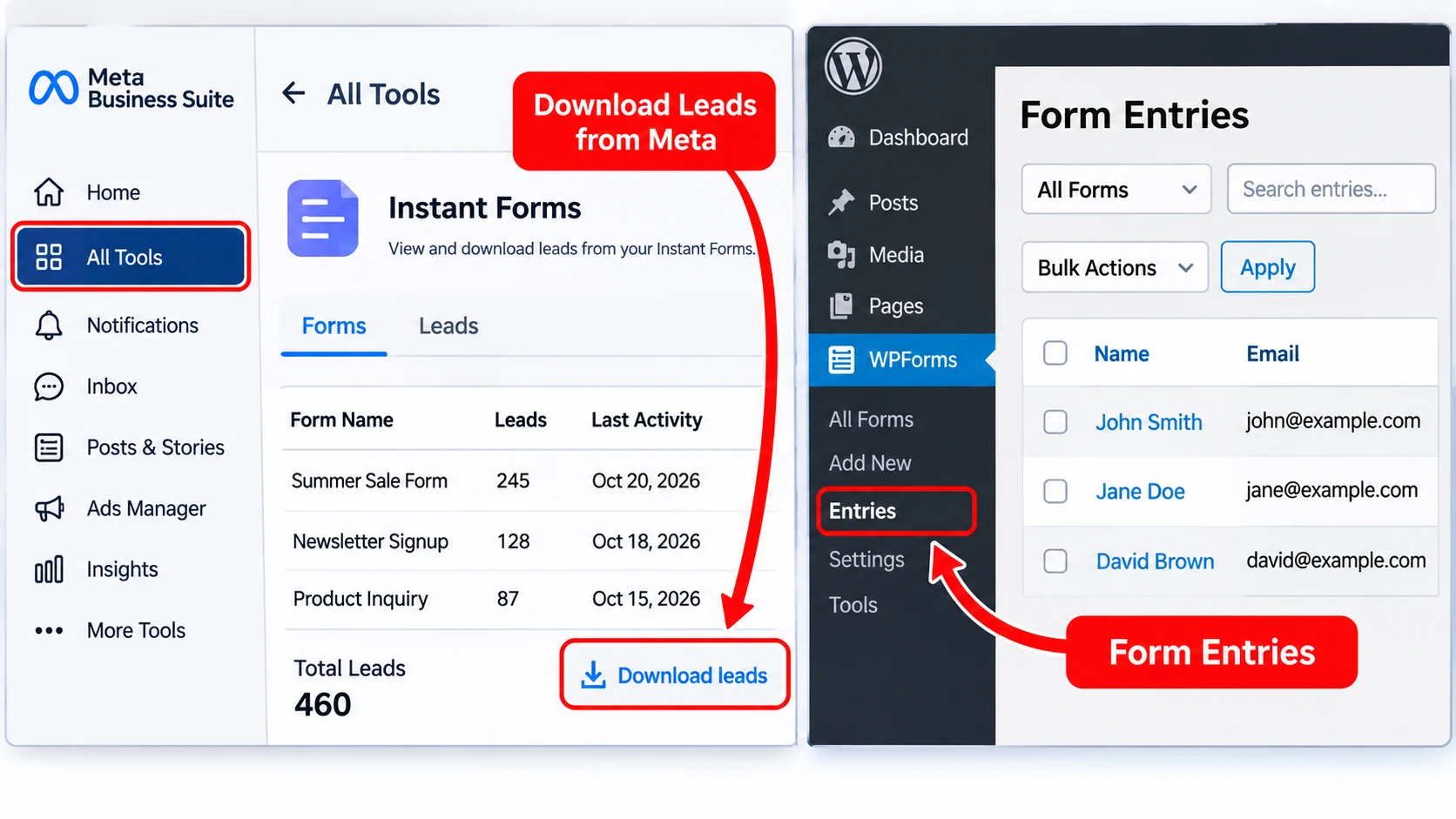
- 1For Meta Lead Ads: Open Meta Business Suite, navigate to All Tools > Instant Forms (or Lead Center), and check if recent submissions appear in the native form list.
- 2For Website / WordPress Forms: Log into your WordPress admin panel and inspect your form plugin's internal database (e.g., WPForms > Entries, Gravity Forms > Entries, Formidable Forms, or Flamingo for Contact Form 7).
- 3The Diagnostic Verdict: If the submission exists on the native platform, your ad creative and form capture work perfectly—the failure lives strictly downstream in the automation bridge or CRM ingestion.
- 4If the submission is missing at this stage: Your form submit button is malfunctioning, JavaScript validation errors are preventing submissions, or your Meta lead ad campaign is disconnected from the form.
- 5Verification Step: Download the native CSV list from Meta or your form plugin to confirm the exact submission timestamp, user IP, and raw contact values.
LK Digital Pro Tip: Always maintain local form submission logging on your website (such as WPForms Entries or CF7 Flamingo) or stream native Meta Leads to an automated backup Google Sheet. Even if an API bridge breaks completely, your raw leads remain 100% recoverable and you avoid burning paid ad spend.
Inspect Automation Bridge Error Logs (Zapier, Make, or Native Integrations)
Most modern lead pipelines rely on an automation bridge—such as Zapier, Make (Integromat), n8n, or native platform webhook apps. When a payload fails to enter the CRM, the middleware tool logs an explicit HTTP status error and stack trace.
Action Checklist:
- 1Log into your middleware automation tool (e.g., Zapier, Make, or n8n).
- 2Navigate to Zap History (Zapier) or Scenario Execution History (Make).
- 3Filter execution runs by Status: Errored / Stopped / Halted.
- 4Click on the failed execution log and expand the payload details to isolate the specific HTTP error code:
- 5401 Unauthorized / Expired Token: The CRM OAuth connection has expired or revoked access; navigate to Apps and re-authenticate the account.
- 6400 Bad Request / Validation Error: The CRM rejected the payload because a required field was missing or formatted incorrectly (e.g., invalid email syntax or telephone format).
- 7409 Conflict / Duplicate: The CRM rejected the contact because an existing record matches the email address and your workflow is set to create-only rather than create-or-update.
- 8The Fix: Re-authenticate expired connections, switch duplicate policies to 'Create or Update Contact', and click 'Rerun / Replay' on all halted tasks.
- 9Verification: Confirm the replayed execution status turns green ('Success') and verify that the contact record immediately appears in your CRM.
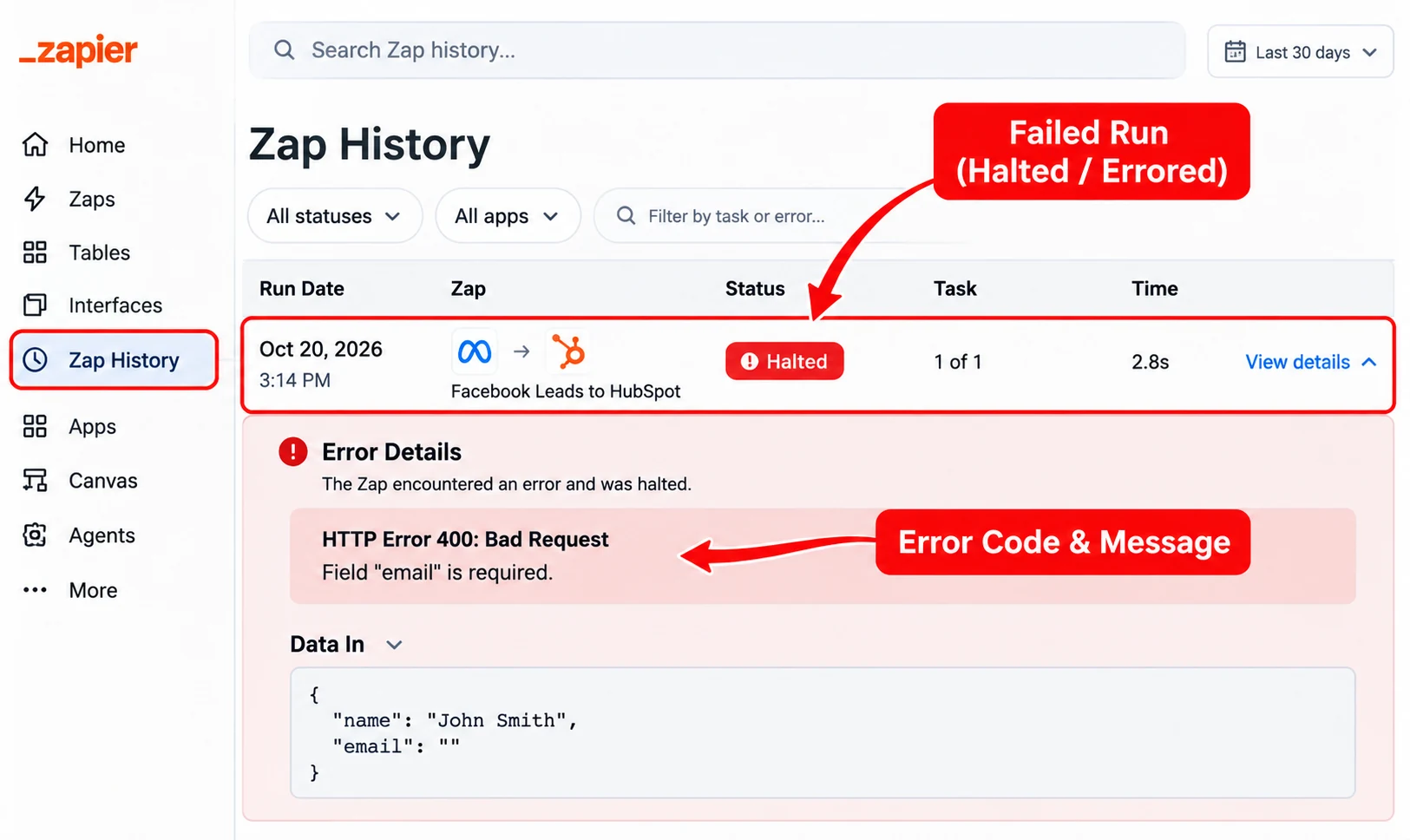
LK Digital Pro Tip: Configure automated webhook error notifications. In Zapier or Make, set up an error notification trigger that automatically pings a dedicated Slack channel or sends an urgent email whenever an execution halts. This allows your team to fix dropped leads within minutes instead of days.
Audit CRM Field Mapping and Required Fields
CRMs enforce strict relational database rules. If your CRM requires a property that your web form does not capture, or if form inputs send incompatible data types, the CRM API will reject the entire record with a 422 or 400 error.
Action Checklist:
- 1Open the integration settings or Zapier/Make action step where form inputs are matched to CRM contact properties.
- 2In your CRM (HubSpot, Salesforce, Zoho), go to Settings > Data Management > Properties / Fields > Contact Properties.
- 3Identify all fields marked as Required / Mandatory for contact creation (common culprits: Last Name, Company Name, Country, or Lead Source).
- 4The Fix (Name Splitting): If your CRM requires 'First Name' and 'Last Name' separately, but your web form captures a single 'Full Name' field, insert a Text Formatter step in Zapier/Make to split the string before sending, or adjust your form fields.
- 5The Fix (Dropdown & Enum Match): If a CRM property is an enumerated dropdown (such as 'Interested Service' or 'Budget Range'), ensure your form field values match the CRM internal values character-for-character, including capitalization and spacing.
- 6The Fix (Phone Formatting): Standardize phone numbers to international E.164 format (+44... or +1...) to prevent CRM telephone validation rejections.
- 7Verification: Trigger a live test submission with every single form field populated and verify that all contact properties populate accurately inside the CRM.
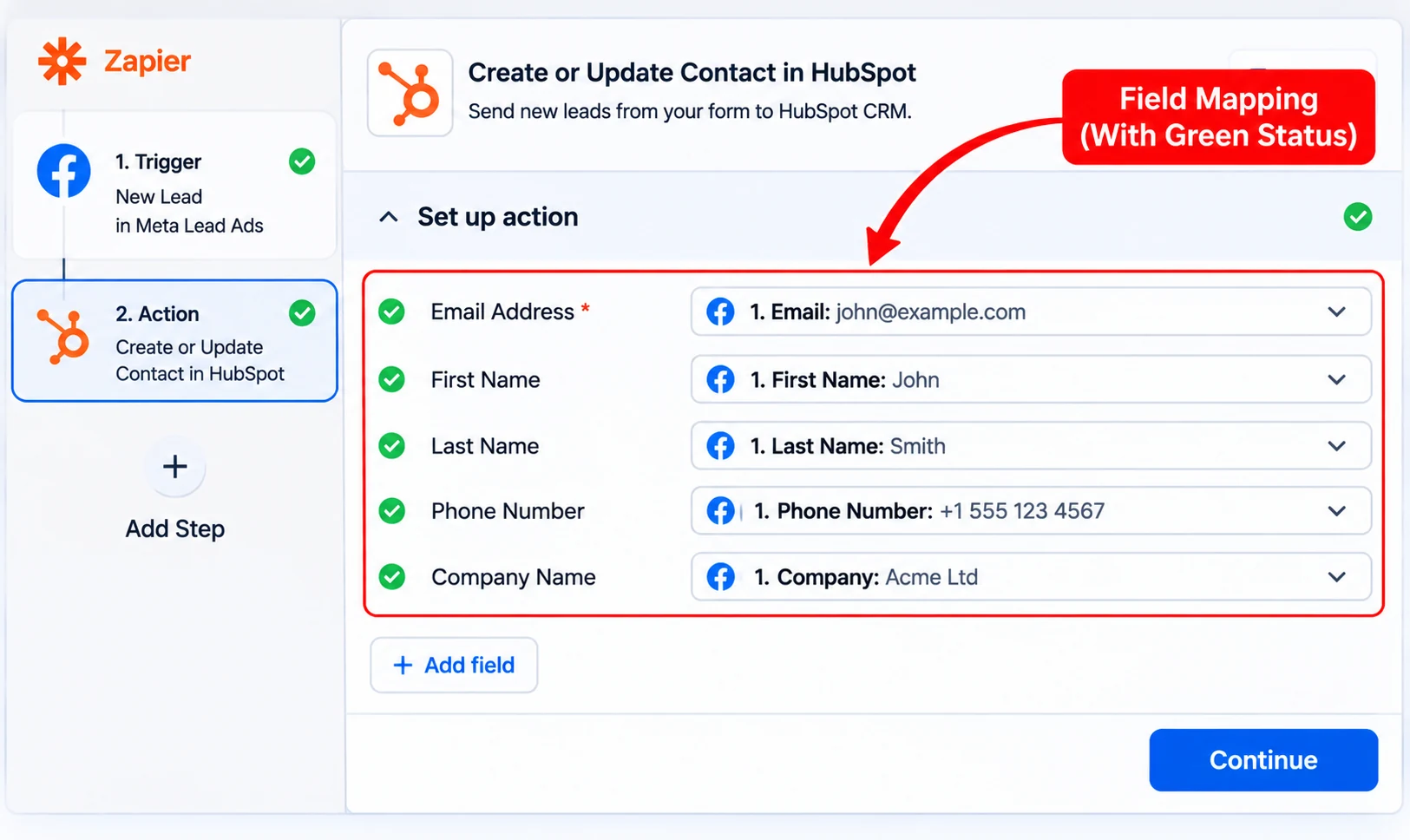
LK Digital Pro Tip: When mapping dropdown fields, always map to the internal property value (API name), not just the front-facing label. In HubSpot and Salesforce, internal property values are frequently lowercase or snake_case (e.g., 'paid_media_services') while the label is 'Paid Media Services'.
Check Spam Quarantines and Email Validation Filters
Modern forms and CRMs incorporate aggressive automated spam engines, honeypots, and disposable email filters. If tuned too aggressively, these filters silently intercept legitimate prospects and route them to hidden quarantine folders without alerting your team.
Action Checklist:
- 1Inspect CRM Quarantine Views: In HubSpot, check Contacts > Views > Non-Marketing Contacts or Spam Submissions; in Salesforce or Zoho, audit your Junk / Quarantined Leads queues.
- 2Inspect Web Form CAPTCHA Thresholds: In your WordPress or web form settings, inspect your Google reCAPTCHA v3 or Cloudflare Turnstile sensitivity score.
- 3The Problem: If the score threshold is set too high (e.g., score > 0.7 or 0.8), legitimate visitors browsing via VPNs, corporate firewalls, or mobile data networks will score as bots and get silently discarded.
- 4The Fix: Lower the reCAPTCHA threshold to a balanced 0.5, or transition from intrusive CAPTCHAs to an invisible CSS honeypot field combined with server-side time-to-submit verification.
- 5Whitelist Verification: Whitelist your office IP address and internal corporate domain to avoid false positives during testing.
- 6Verification: Submit a live test lead using a personal external email (e.g., a standard @gmail.com address) from a mobile smartphone on cellular data to verify seamless pass-through.
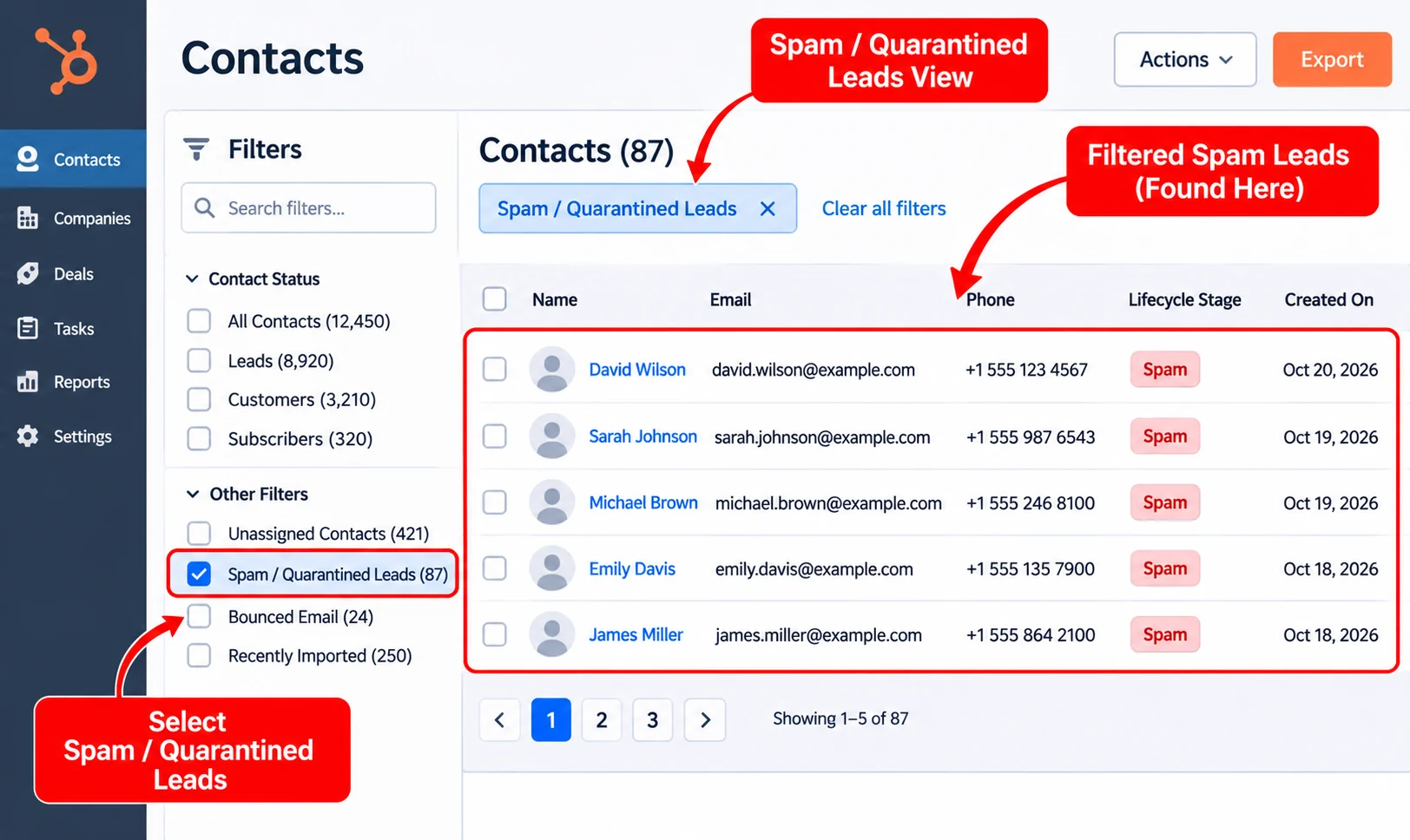
LK Digital Pro Tip: Invisible honeypot fields consistently outperform aggressive CAPTCHAs for lead generation forms. A honeypot is an off-screen form field hidden with CSS ('display: none;'). Spambots automatically fill every input field, while human prospects leave it blank. If the honeypot field has a value, discard the submission server-side without degrading user conversion rates.
Verify CRM User Permissions and Lead Assignment Routing
In many instances, the lead traversed the automation bridge and successfully entered the CRM database, but not a single sales representative can see it. Restrictive view permissions and unassigned contact filters make leads vanish from daily operating dashboards.
Action Checklist:
- 1Log into your CRM using an Administrator account with global viewing privileges.
- 2Search globally for the test lead's email address or phone number in the top global search bar.
- 3If the record appears in Admin view but remains invisible to sales reps:
- 4Check Contact Ownership: Newly created API leads often enter without an assigned owner. If your sales reps' dashboard view is filtered to 'My Assigned Leads Only', unassigned contacts become completely invisible.
- 5Check Pipeline Stage & Deal Routing: Review your CRM workflow automations to verify that new leads are routed to the primary active sales pipeline rather than an unmonitored archive or legacy queue.
- 6Check Permission Sets: Ensure your sales user role has 'Read' and 'Edit' permissions for contacts created via integrations.
- 7The Fix: Create an automated assignment workflow (e.g., 'When new contact created via API/Form -> Assign contact owner via Round-Robin'). Change default team views to 'All Unworked Leads in Pipeline'.
- 8Verification: Log into the CRM from a standard sales rep's user account and confirm that the newly routed lead appears prominently in their primary inbox.
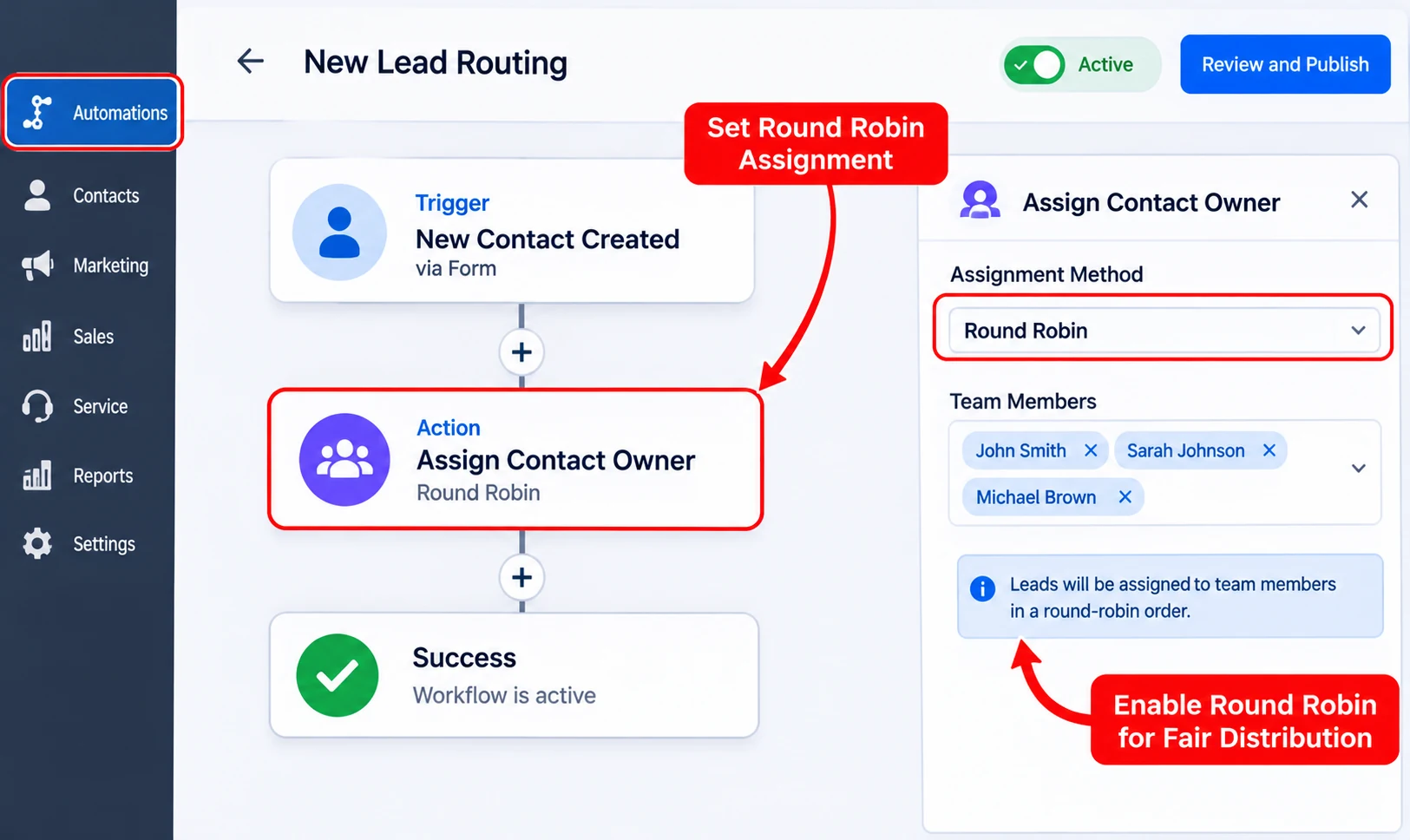
LK Digital Pro Tip: Establish a Speed-to-Lead SLA notification workflow. Combine your round-robin lead assignment rule with an instant notification—such as an automated Slack channel alert, push notification, or SMS. When reps receive immediate notification within seconds of form submission, lead qualification rates jump by over 300%.
How Long Until Tracking & Delivery Restores?
Once these adjustments are applied, event verification and attribution reconnect according to these pacing benchmarks:
Re-authenticating OAuth connections in Zapier/Make and replaying errored tasks pushes backlogged leads into your CRM in real time.
Aligning field keys, string values, and splitting names eliminates 400 Bad Request errors instantly on all future form submissions.
Adjusting CAPTCHA sensitivity thresholds to 0.5 stops false-positive quarantine drops while preserving bot defense.
Automated owner assignment workflows route inbound leads directly into sales reps' visible dashboard inboxes without delay.
Never depend entirely on a single point-to-point webhook connection between ad platforms and your CRM. Always implement a dual-logging fail-safe: configure your website form to store every submission locally in a database (such as WPForms Entries or Gravity Forms Entries) or duplicate webhook payloads to an encrypted Google Sheet or database before sending to your CRM. If an OAuth token expires over the weekend or a CRM API update rejects payloads, zero data is lost and your entire lead batch can be re-ingested with a single click.
Need a professional to handle this?
If your leads are still missing from your CRM after following this guide, there might be a deeper structural issue with your funnel or tracking. You don't have to waste time guessing.
Reach out to us at zidan@lkdigital.uk to have the LK Digital team diagnose and solve the problem for you.